Automate Your App Store Screenshots with Claude and MCP
Making an App Store screenshot set is repetitive by design: ten screenshots, one visual style, every release. Repetitive-by-design is exactly what AI agents are good at. Here’s how to hand the whole chore to Claude.
What MCP is, in one paragraph
MCP (Model Context Protocol) is an open
standard that lets AI clients (Claude Code, Cursor, VS Code, Codex) call tools
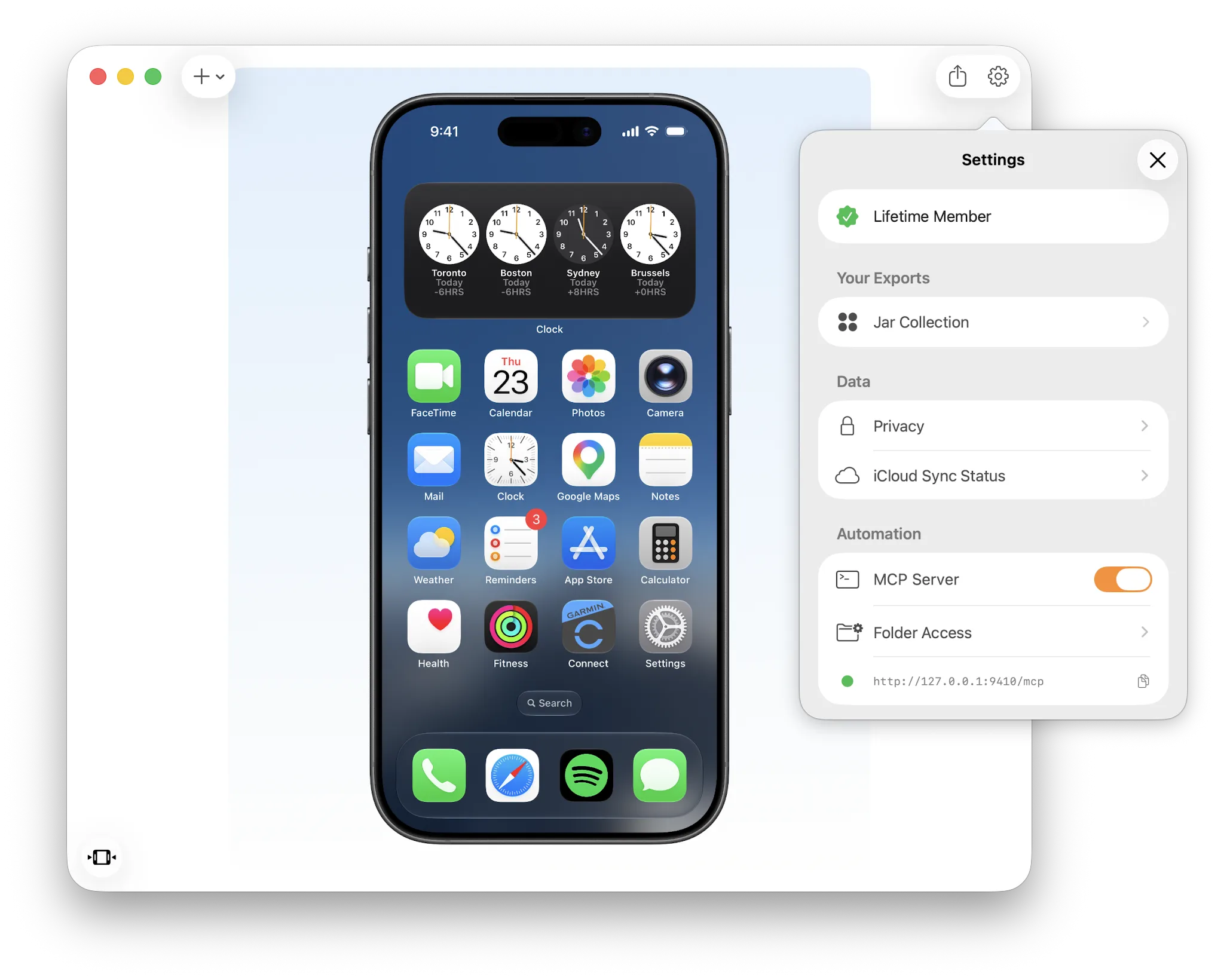
exposed by other apps. Screeny for Mac ships a built-in MCP server: a
local-only HTTP server (it listens on 127.0.0.1, port 9410, a nod to
9:41) that exposes Screeny’s rendering engine as tools an agent can call.
Setup takes two minutes
- In Screeny for Mac: Settings → Automation → turn on MCP Server
- In your terminal:
claude mcp add --transport http screeny http://127.0.0.1:9410/mcpThat’s it. Full instructions for Cursor, VS Code, and Codex are in the MCP guide.
What you can ask for
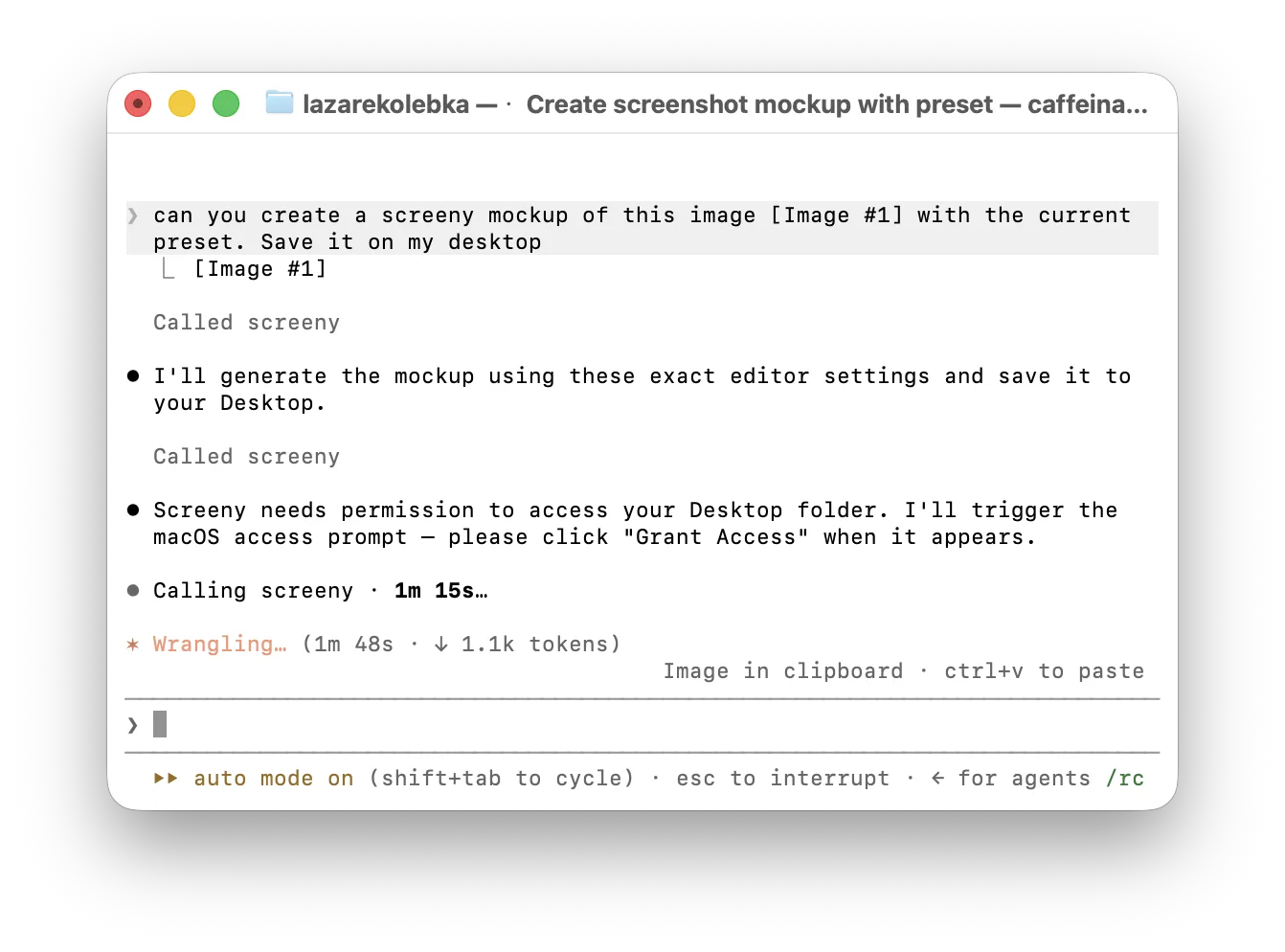
Once connected, Claude can list Screeny’s devices and your saved presets, read what you currently have open in the editor, and create image or video mockups, up to 10 per call (full parameter tables in the MCP Tools Reference). Real prompts:
- “Frame every screenshot in ~/Screenshots/release-2.0 in an iPhone 17 Pro, Cosmic Orange, with my ‘App Store’ preset, and save them next to the originals.”
- “Make a video mockup of demo.mov with a zoom push-in on the search bar at 0:02, smooth easing.”
- “Recreate what I have open in the editor for these five new screenshots.”
The batch prompt is the killer one: your release-day screenshot chore becomes a sentence.
Security model: the agent asks, you approve
An agent working through Screeny can’t wander your file system. Screeny is sandboxed. When Claude needs a folder, Screeny pops the native macOS folder picker and you decide. Inside a granted folder, exports only ever create new files; Screeny never overwrites or deletes anything. All rendering happens locally on your Mac, and MCP exports use the same credit system as the app.
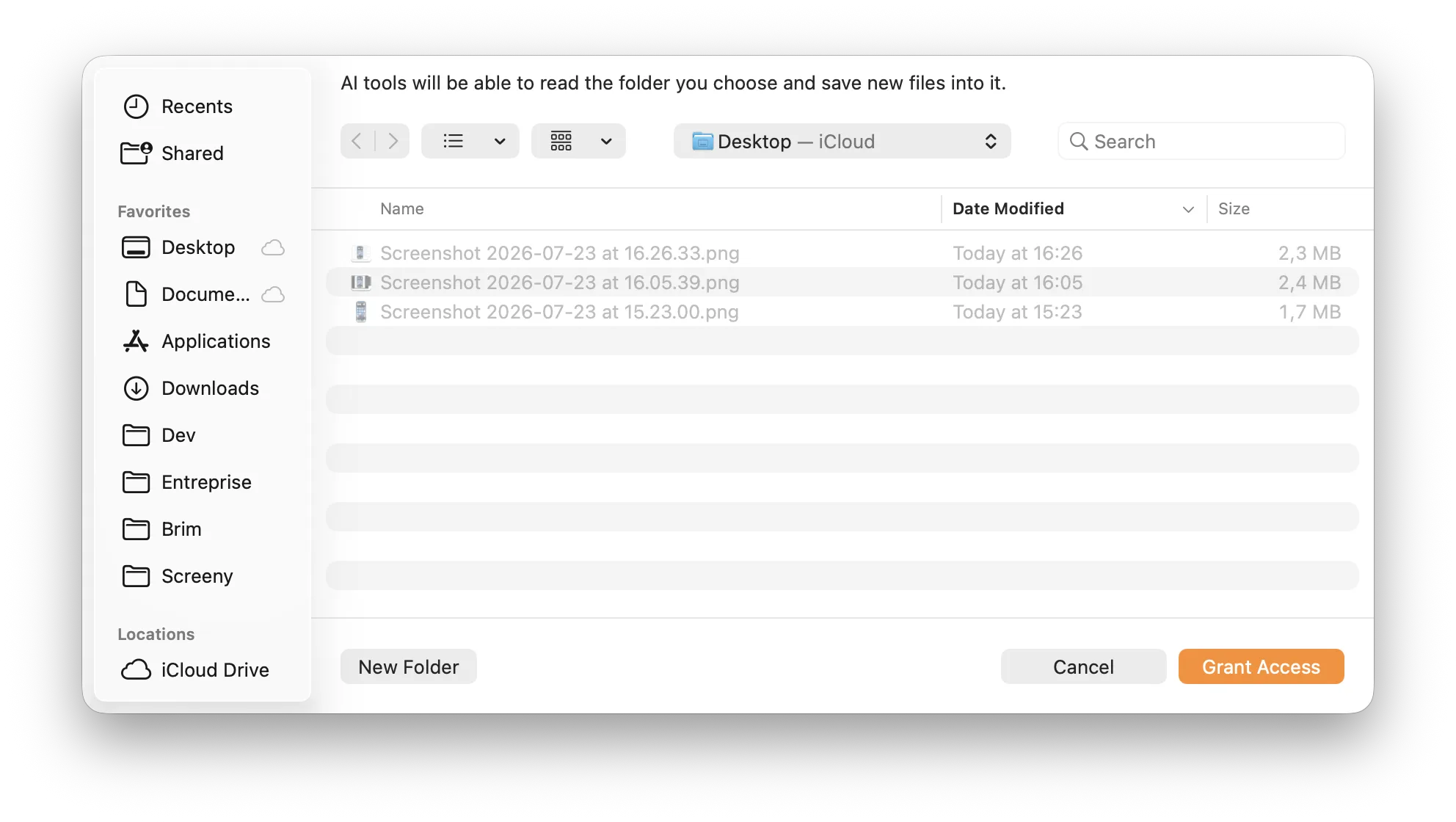
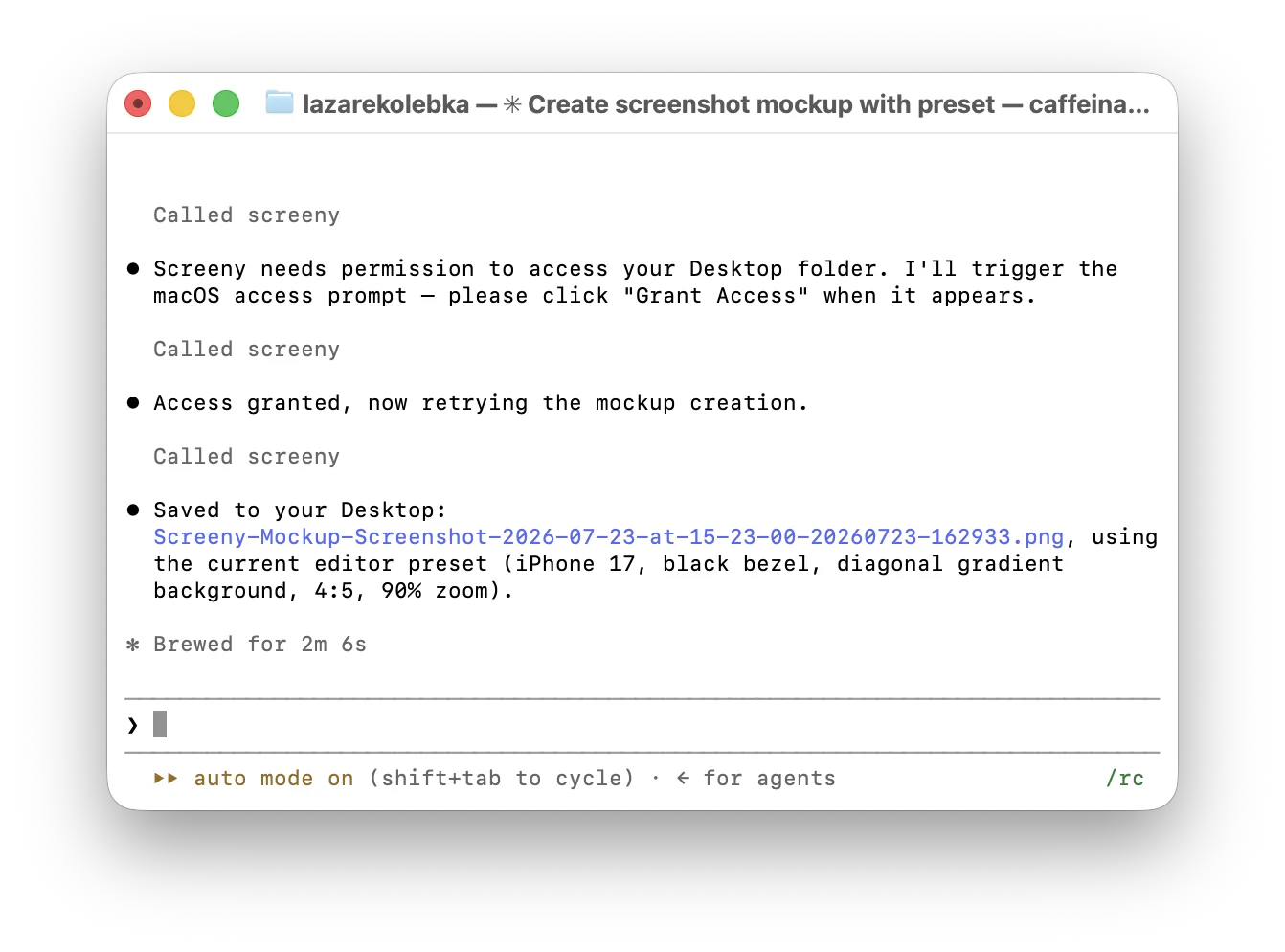
Click Grant Access and the agent retries automatically, no need to repeat the prompt:
Frequently asked questions
Does this work with Claude Desktop? Not yet. Claude Desktop can’t currently connect to plain-HTTP localhost servers. Claude Code, Cursor, VS Code, and Codex all connect directly.
Do I need the iPhone app? The MCP server lives in Screeny for Mac. It’s one universal purchase, so the same app runs on iPhone, iPad, and Mac.
Can the agent spend my credits without asking? Each successful export costs credits exactly as it would in the app: 1 per image, 3 per video. Agents can’t buy credits or change your plan.