How to Put a Screenshot in an iPhone Frame
A raw screenshot looks unfinished. Wrapped in a real iPhone frame (bezel, rounded corners, the works) it instantly reads as a product shot you could put on the App Store, a landing page, or social media. Here are the three main ways to do it, and what each one costs you in time.
Option 1: A design tool template
Figma and Sketch communities are full of free device mockup templates. Download one, drop your screenshot into the frame layer, align it, export.
It works, but the friction adds up: you need a computer, the right template for your exact device (an iPhone 17 Pro screenshot in an iPhone 13 frame looks subtly wrong), and manual exporting for every size you need. Templates also age. When Apple ships new devices and colors, your template doesn’t update itself.
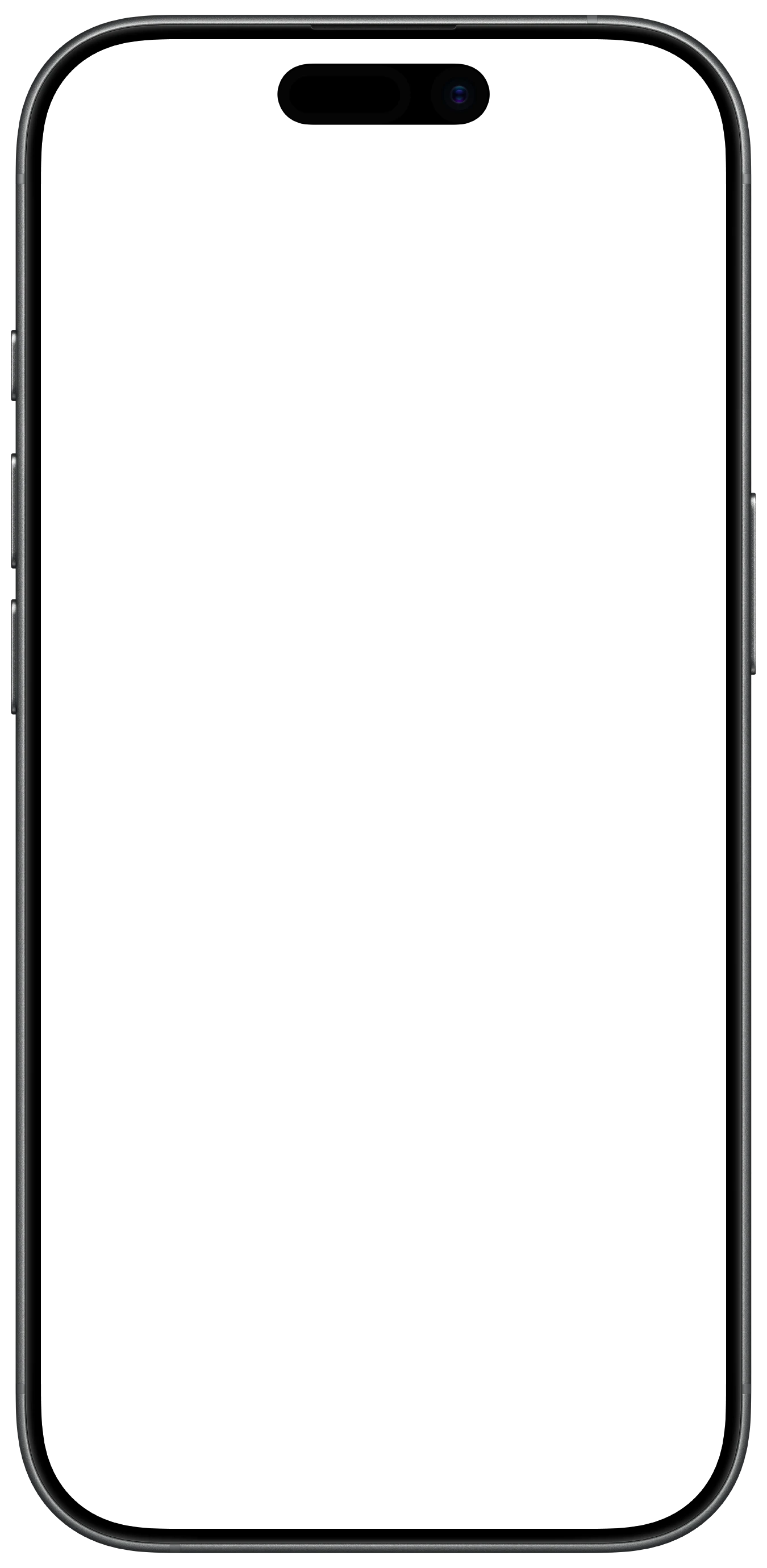
If you go this route you don’t have to hunt for a template: the same frames Screeny uses are free to download, sized so a screenshot straight off the device drops in without scaling.
Option 2: A web mockup generator
Browser-based generators are fast for a one-off: upload, pick a device, download.
Two caveats. First, your screenshot gets uploaded to someone’s server, worth pausing on if it shows an unreleased app or private data. Second, most free web tools watermark the result or gate the high-resolution export behind a signup.
Option 3: Do it on your iPhone
The screenshot is already on your phone. The fastest path is framing it right there. With Screeny, it’s the share sheet:
- Take a screenshot
- Tap Share → Screeny
- Pick your device frame and background, tap Export
You get a real bezel for your exact device: every iPhone 15, 16, 17, and iPhone Air color, plus iPads, a clean 9:41 status bar, and backgrounds from solid colors to gradients to Unsplash photos. Everything renders on-device, so nothing is uploaded, and exports are never watermarked.
Which should you use?
If you’re already in Figma composing a bigger marketing layout, a template is fine. For a quick one-off where privacy doesn’t matter, a web generator works. For screenshots you make repeatedly (App Store sets, release threads, blog posts), an on-device app pays for itself immediately: save a preset once and every future screenshot is share → apply → export.

Frequently asked questions
Do I need Photoshop to frame a screenshot? No. Any of the three approaches above works without Photoshop.
Can I get a transparent background? Yes. Screeny exports PNG with a transparent background, so you can drop the framed device straight into Figma, Keynote, or a website.
What about video? Screen recordings can be framed too, and it’s the same three options: How to Put a Video in an iPhone Frame.