Device Mockup Generator: Free iPhone Frames for App Screenshots
Search for a device mockup generator and you get two different products wearing the same name. One hands you a picture of a phone. The other composes your screenshot into it and hands you a finished image. Knowing which you need saves you a signup.
What a device mockup generator actually does
Three jobs, and most tools do only the first two.
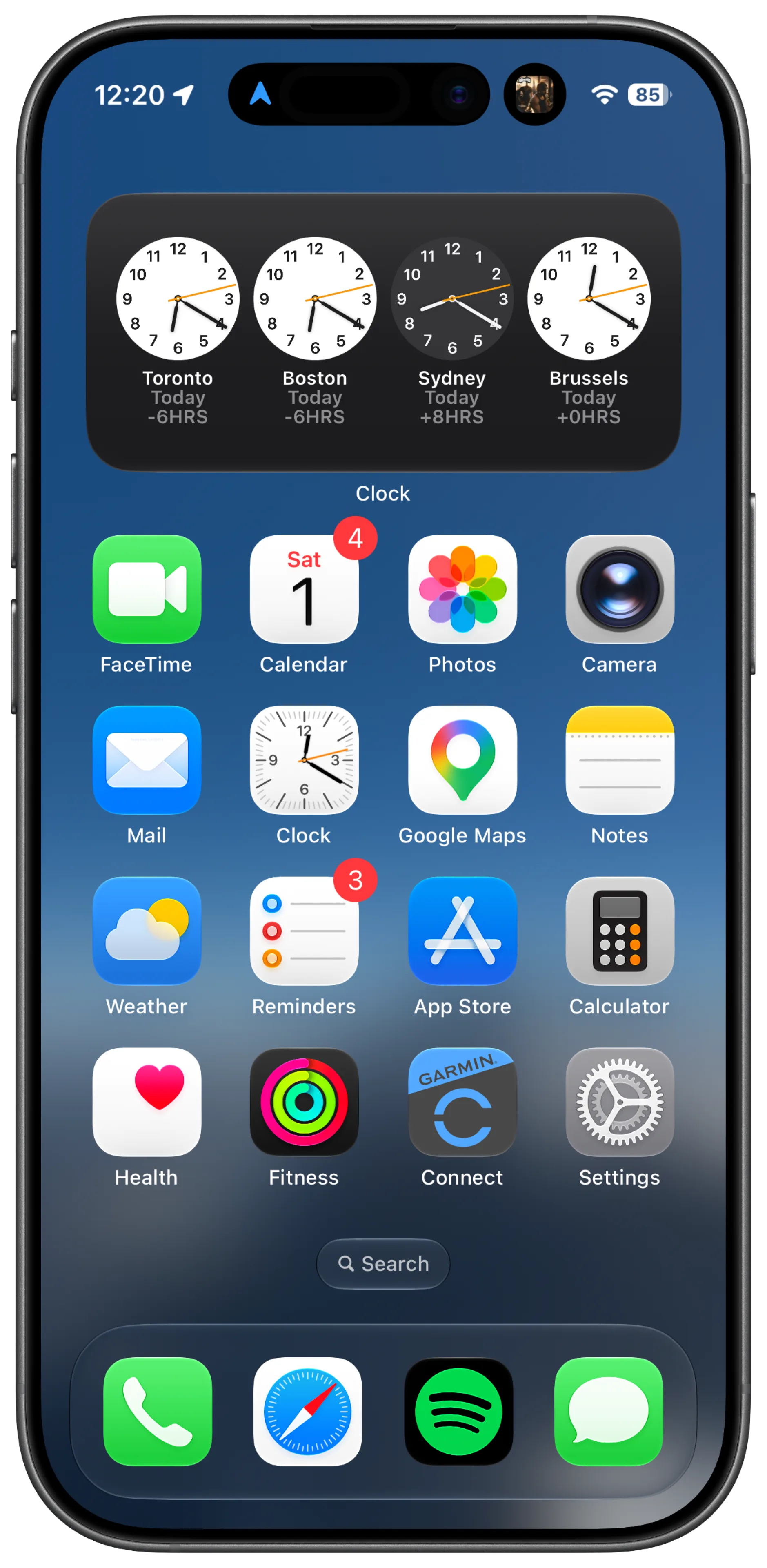
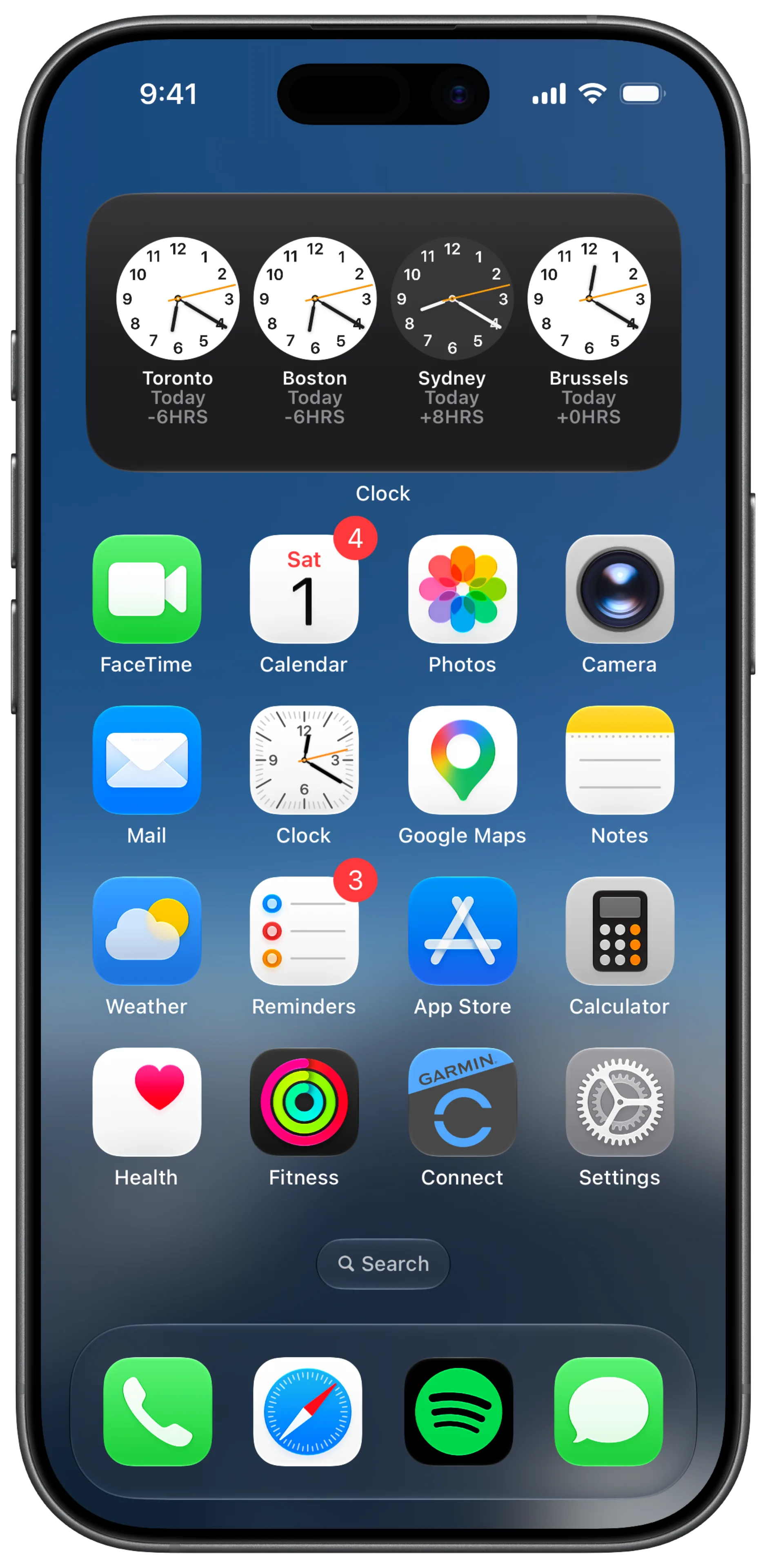
Framing puts your screenshot inside a device bezel at the right scale. Composition adds a background, a caption, and a consistent layout across a set. Status bar cleanup replaces whatever your capture recorded with 9:41, full signal and full battery.
The first is a layer operation you can do yourself in a minute. The third is the one that is genuinely hard by hand, because it means reconstructing the pixels behind the bar rather than painting a strip over them.
When a free frame is enough
Take the frame and skip the generator when any of these is true:
- You are already composing in Figma, Sketch or Canva and want the mockup as one layer among many
- You need one hero image for a landing page or a post, not a set of ten
- Your screenshot came off a simulator, where
simctlalready gave you a clean status bar - You want the framed device on a transparent background to composite into something else
The Screeny frames are the same PNGs the app renders with: iPhone 17, iPhone 17 Pro and iPhone Air, twelve colours, transparent everywhere the phone is not. Each aperture matches that device’s native screenshot resolution, so a capture straight off the phone or the simulator drops in at 100% without scaling.
The three things a flat PNG leaves you
A frame is a picture of a phone. Composing with it, you still own:
The corner radius. The screen is a rounded rectangle and your screenshot is square, so the corners poke past the curve. You match the radius by eye or mask with the aperture.
The status bar. A frame does nothing about a capture that reads 3:47pm on 23% battery next to a carrier name. On a real-device screenshot this is retouch work, ten to fifteen minutes a screen, and on video it is impractical.
Consistency across the set. Ten screens need the same frame, the same background, the same padding and the same bar. Then one screen changes and you redo that screen to match nine others.
None of the three is difficult. They are just repetitive in a way that scales badly with the number of screens and the number of times you ship.
When a generator is worth it
The economics flip somewhere around the second or third time you do a full set. One landing-page hero, take the frame. A ten-screen App Store set that you will regenerate at the next release, take the tool.
Screeny is the on-device version of that trade: the framing, the background and the rebuilt 9:41 status bar come out as one export, on the phone that took the screenshot, so there is no round trip to a desktop first. Save a preset and the next release is import, apply, export.
Frequently asked questions
Are the Screeny frames really free? Yes, and there is no signup or email. Use them for your own mockups, store listings, posts and client work. The one limit is redistributing them as your own asset pack.
What resolution are they? 1350 × 2760 for iPhone 17 and 17 Pro, 1380 × 2880 for iPhone Air, with the aperture matching each device’s native screenshot size.
Can I use them for a client project? Yes, no attribution needed. They depict Apple hardware, so Apple’s trademark and product image guidelines govern how you show the devices.
Do they work for video? Yes, the same PNG works as an overlay in a video editor. That is a longer job than a still, because the corner mask and the scale have to hold for every frame.
Which iPhone should I frame my App Store screenshots in? Any of them. Apple cares about the image dimensions, not which device you drew. Pick one and use it across the whole set.