How I Automate 450 Localized App Store Screenshots
For a long time, updating my App Store screenshots took an afternoon. I took screenshots on my phone, framed them in Screeny, imported the mockups into Sketch, lined them up, and exported.
Then I looked at what I had shipped to the Chinese App Store.
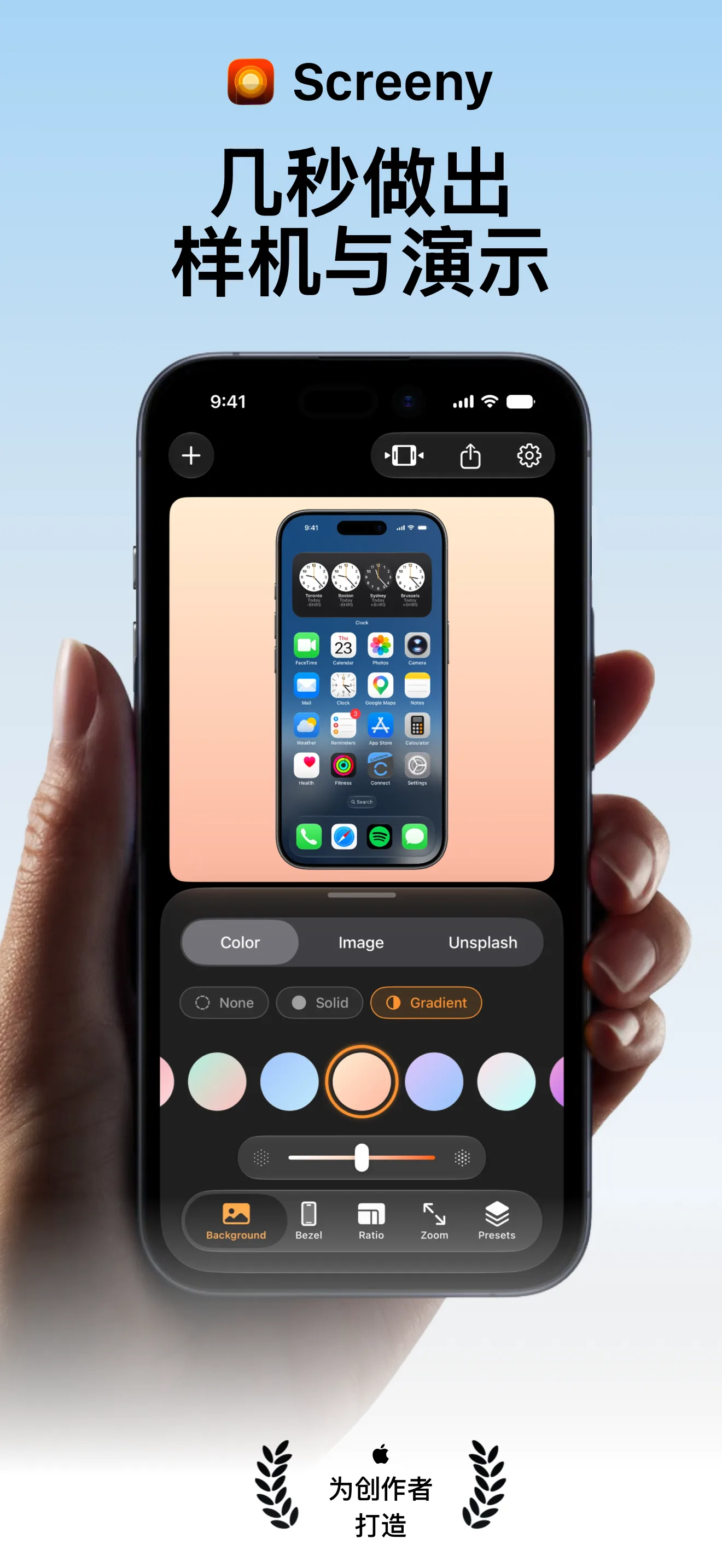
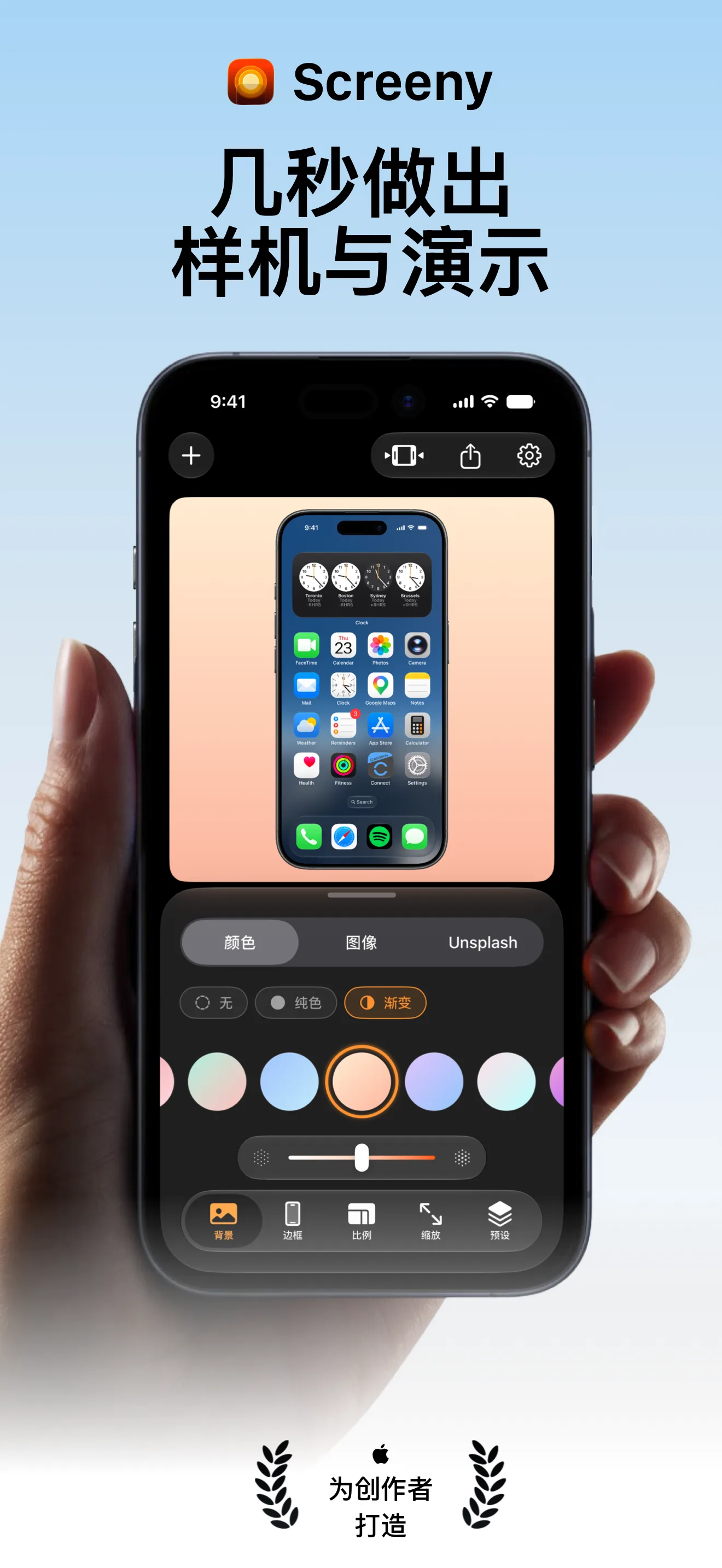
The headline is in Chinese. Everything inside the phone is in English. I had translated the caption and left the app untranslated, in the one image whose job is to show the app.
Apple treats screenshots as localized metadata, like the description and the keywords. Its guidance is to “localize your app description, keywords, app previews, and screenshots, for each of the markets in which you offer your app” (App Store product page guidance ).
Fixing that by hand meant doing the same clicks in every language, and I got fed up with clicking. So I built an MCP server into Screeny, and now Claude does everything.
This post covers how the pipeline captures the app in 15 languages, how it gets a 9:41 status bar out of the simulator, and how the result ends up in Sketch.
Why 450 screenshots?
Screeny runs on iPhone, iPad and Mac. It is translated into 15 languages. Each listing has 10 screenshots.

3 × 15 × 10 = 450 PNGs.
I rarely need to redo all 450. Usually one screen in the app changes. But one screen is still 3 × 15 = 45 files, and all 45 are out of date the day that change ships.
At 45 files per UI change, I was spending more time on screenshots than on the app.
The whole job is one prompt now
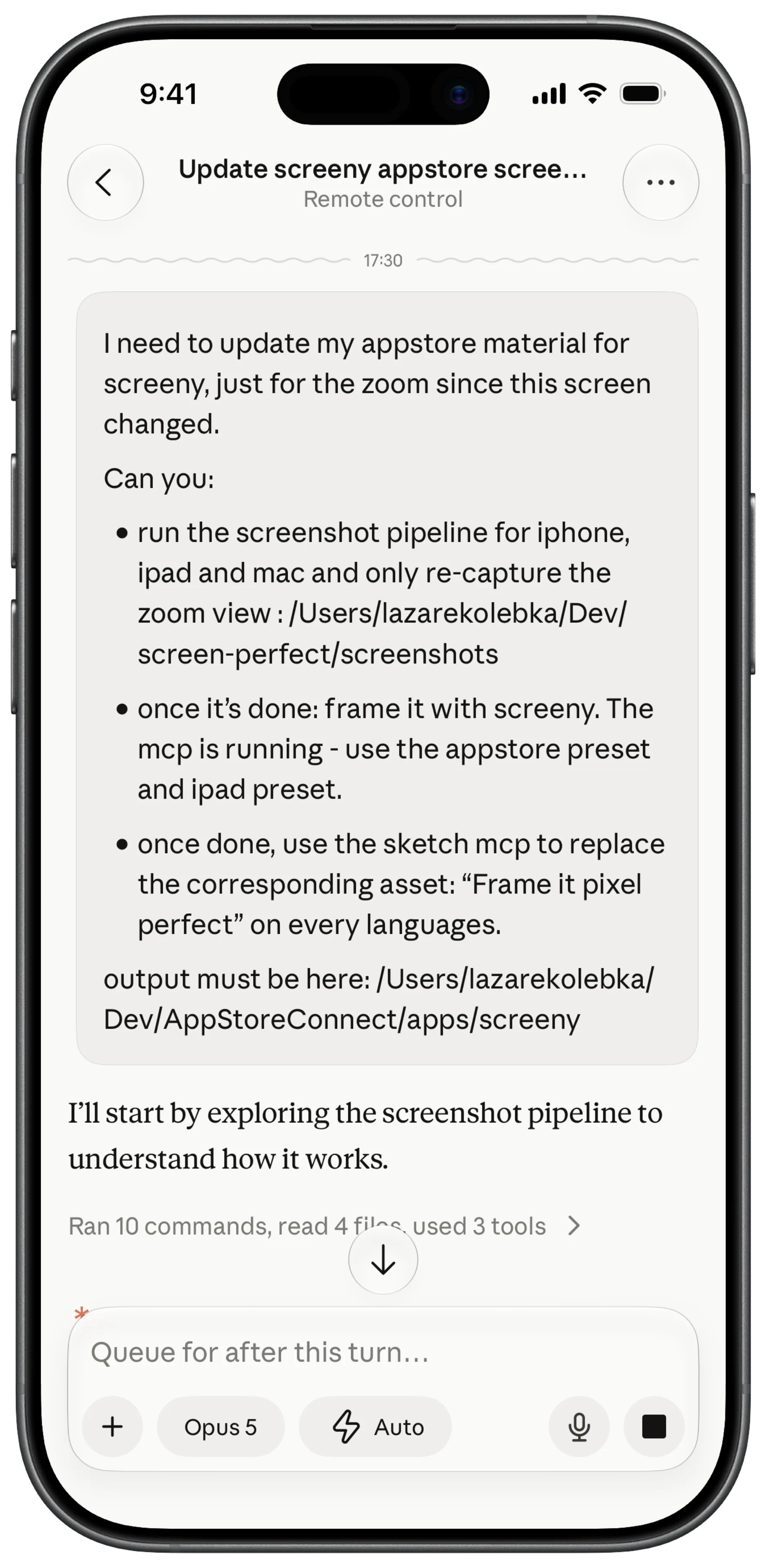
That is a real message. The zoom screen had changed, so its screenshot needed replacing in 45 places.
Claude isn’t doing design work here. The pipeline is three scripts, a JSON file and a Sketch document, and I wrote all of them before pointing an agent at them. What Claude does is the bookkeeping: which scene, which language, which preset, which artboard. That was the tedious part when I did it by hand.
The pipeline has three steps, and each one hands a PNG to the next:
- CaptureiOS SimulatorA UI test opens each screen listed in scenes.json, once per language, under a 9:41 status bar.Raw screenshot1206 × 2622
- FrameScreeny MCP serverA saved preset puts each iPhone and iPad capture inside a device frame.Framed mockup1879 × 3840
- ComposeSketchA script swaps the mockup into its artboard on each language page, then exports.App Store screenshot1320 × 2868
The rest of this post goes through them in order.
Step 1: Capture the app without tapping through it
The capture script never taps a button. A file called scenes.json describes
each screenshot as data: which tab is open, how tall the bottom sheet is, which
background is selected.
{
  "id": "01-background-gradient",
  "panel": "editor",
  "tab": "background",
  "detent": "medium",
  "tabBounce": true,
  "background": { "type": "gradient", "index": 3 }
}
Launch the app with -screenshotScene 01-background-gradient and a debug-only
hook puts it straight into that state. The same hook unlocks Pro for that launch
and skips onboarding, so no paywall or welcome screen ends up in the shot.
A UI test does the launching. For each scene it starts the app, waits for a marker the app sets when the screen is ready, and saves a full-resolution screenshot.
Changing the language is one flag:
./screenshots/generate.sh --scene 01-background-gradient --lang zh-HansThe flag passes -AppleLanguages "(zh-Hans)" to the app at launch. Nothing in
the pipeline translates anything. The app loads its own Chinese strings, so
Color becomes 颜色 and Gradient becomes 渐变, the same way they would on a phone
set to Chinese.
Before the first capture, the script does one more thing: it sets the status bar.
How to force the simulator’s status bar to 9:41
Every screenshot needs the same status bar: 9:41, full signal, full Wi-Fi, full battery. (Why 9:41?) Apple’s marketing guidelines ask for the icons too: the status bar “should show a full network icon or product designator, a full Wi-Fi icon, and a full battery icon.”
The simulator can fake all of it with one command:
xcrun simctl status_bar "$UDID" override \
  --time "9:41" \
  --dataNetwork wifi --wifiMode active --wifiBars 3 \
  --cellularMode active --cellularBars 4 \
  --batteryState discharging --batteryLevel 100
$UDID is the simulator’s ID. You can write booted if only one simulator is
running. The override changes what the status bar draws, and the simulator’s
real clock keeps running underneath.
That command is enough for a one-off screenshot. To get the same bar on every run, on iPhone and iPad, my script adds four things.
Force 12-hour time
On a simulator set to a 24-hour region, the bar reads 09:41. Apple’s
screenshots read 9:41. A preference forces 12-hour time:
xcrun simctl spawn "$UDID" defaults write -g AppleICUForce24HourTime -bool false
xcrun simctl shutdown "$UDID"
xcrun simctl boot "$UDID"
The simulator reads that preference when it boots, so the script restarts it and then sets the status bar.
Use a full date for iPad
An iPad shows the date next to the time, and --time "9:41" only sets the time.
Give --time a full ISO date and it sets both:
--time "2026-04-01T07:41:00.000Z"The timestamp is in UTC and the simulator shows it in local time. 07:41Z reads
9:41 for me because I’m at UTC+2 in April, so pick the hour that lands on 9:41
where you are. The weekday next to the date still follows the real clock.
Keep xcodebuild on the same simulator
Xcode can run UI tests in parallel by cloning the simulator, and a clone doesn’t carry the override. Turning parallel testing off keeps the test on the simulator the script prepared:
xcodebuild test-without-building \
  -xctestrun "$XCTESTRUN" \
  -destination "id=$UDID" \
  -parallel-testing-enabled NO
Set it again after a SpringBoard restart
Restarting SpringBoard, the process that draws the home screen, clears the override. Brim, my other app, has to do that: its screenshots include a home screen widget, widgets follow the simulator’s system language, and changing that language needs a restart. So Brim’s script runs the override again right after.
When you are done, this brings the normal status bar back:
xcrun simctl status_bar "$UDID" clearsimctl only talks to simulators. For a screenshot taken on a real iPhone, see
How to Clean Up the Status Bar in App Screenshots.
How the Mac version gets captured
Screeny for Mac is a Mac Catalyst app. There is no simulator to boot, so a
second script launches the real app once per scene, with the same
-screenshotScene flag, and captures its window with screencapture.
Capturing a real window takes a little more setup than a simulator does:
- The Mac app is sandboxed and can’t read
scenes.jsonfrom my source folder, so the script copies the file into the app’s container first. - The capture is a rectangle of the screen, so the script makes sure Screeny’s window is in front before it shoots.
- macOS restores the last window size on launch, so the script deletes the saved window frame and every capture comes out at the same dimensions.
Step 2: Frame the captures with a preset
A preset in Screeny is a saved set of framing choices: device, background, status bar. I keep one for iPhone and one for iPad, and use them for all 15 languages.
| Platform | Preset | Why |
|---|---|---|
| iPhone | Device frame on, background transparent | The mockup sits on whatever background the Sketch artboard has |
| iPad | Device frame on, background included, its own sizing | An iPad needs different proportions to read well at App Store size |
| Mac | None, the capture goes straight to Sketch | A window capture already looks like an App Store screenshot |
The Mac row is a choice. Screeny can put a Mac capture inside a MacBook frame, but I went with the plain window, so Screeny isn’t involved in the Mac set at all.
Both presets leave Screeny’s Clean Status Bar option off. That option rebuilds the status bar on a screenshot from a real phone, and these captures already have a 9:41 bar from the simulator.
Claude sends each iPhone and iPad capture to Screeny’s MCP server with a preset name and gets a framed PNG back. MCP (Model Context Protocol) is the standard that lets an agent call tools in other apps, and Screeny for Mac runs a local server for it. The setup is in Automate Your App Store Screenshots with Claude and MCP.
Step 3: Swap the mockup into Sketch
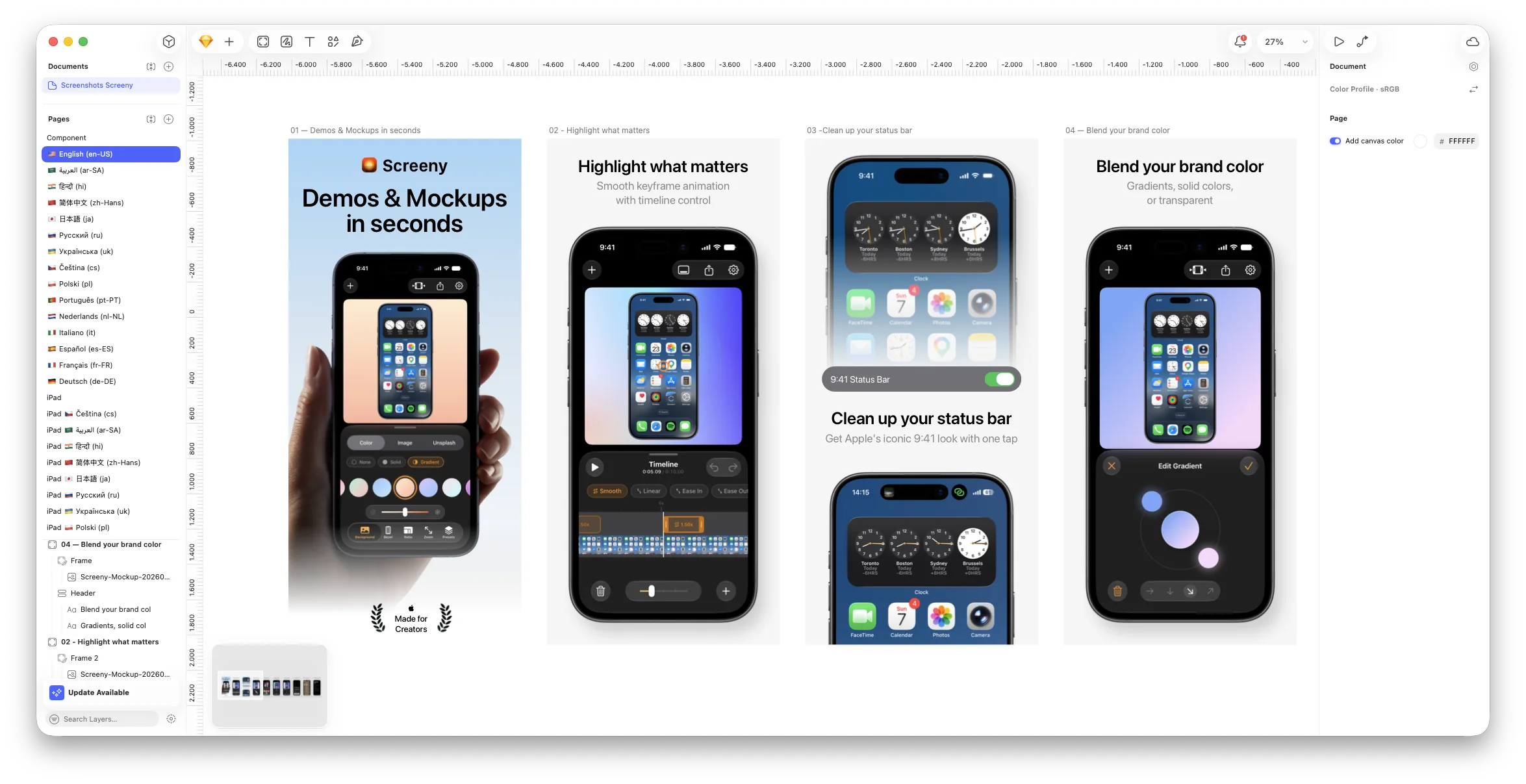
I use Sketch as my design tool. I moved over from Figma when I saw how Figma meters its MCP server: 20 tool calls a month on the Starter plan, 200 a day on a paid Full or Dev seat . Replacing one screen in this pipeline touches 45 artboards. Sketch’s Mac-only license is a one-time payment, and its MCP server runs locally inside the Mac app, so nothing counts the calls. It works brilliantly for this.
The Sketch document has a Component page with the master design, then one page per language. The list repeats for iPad, which has a different canvas size, and again for Mac.
Two rules make the document safe for a script to edit.
Every language page has the same artboards with the same names.
06 — Frame it pixel perfect exists on all 15 pages, spelled identically. The
script finds an artboard by name. If it used position, it would break the first
time I reordered a page.
Every artboard has a Header group and an Image layer. The header holds the translated headline, which I adjust by hand, and the script never touches it. The Image layer holds the mockup. It is the only thing the script replaces.
Scene names and artboard names don’t match, by the way. Scene 05-zoom goes
into artboard 06 — Frame it pixel perfect. Scenes are numbered by app state
and artboards by their order in the store listing, so the mapping between them
is written out by name.
The swap and the export
Claude runs the script through Sketch’s MCP server, whose run_code tool
executes JavaScript against the same API a Sketch plugin uses. The script finds
the artboard, checks that it contains exactly one image, and replaces that
image:
const frame = sketch.find('#' + frameId, doc)[0];
const imgs = sketch.find('Image', frame);
// imgs.length !== 1 → abort with EXPECTED_ONE_IMAGE, rather than guess which layer
imgs[0].image = { path: sourcePath };
Then it exports the artboard:
sketch.export(frame, {
  output: outDir,
  filename: frame.name + '.png',
  formats: ['png'],
  scales: ['1.0'],
  overwriting: true,
});
Each swap logs the image’s pixel size before and after, and whether the exported
file is the size Apple expects. A mismatch prints a ⚠ on that line, which is
much easier to spot than a slightly smaller thumbnail in a grid of 15.
What one screenshot looks like at each step
Here is the first screenshot of the listing going through all three steps, in English and in Chinese.
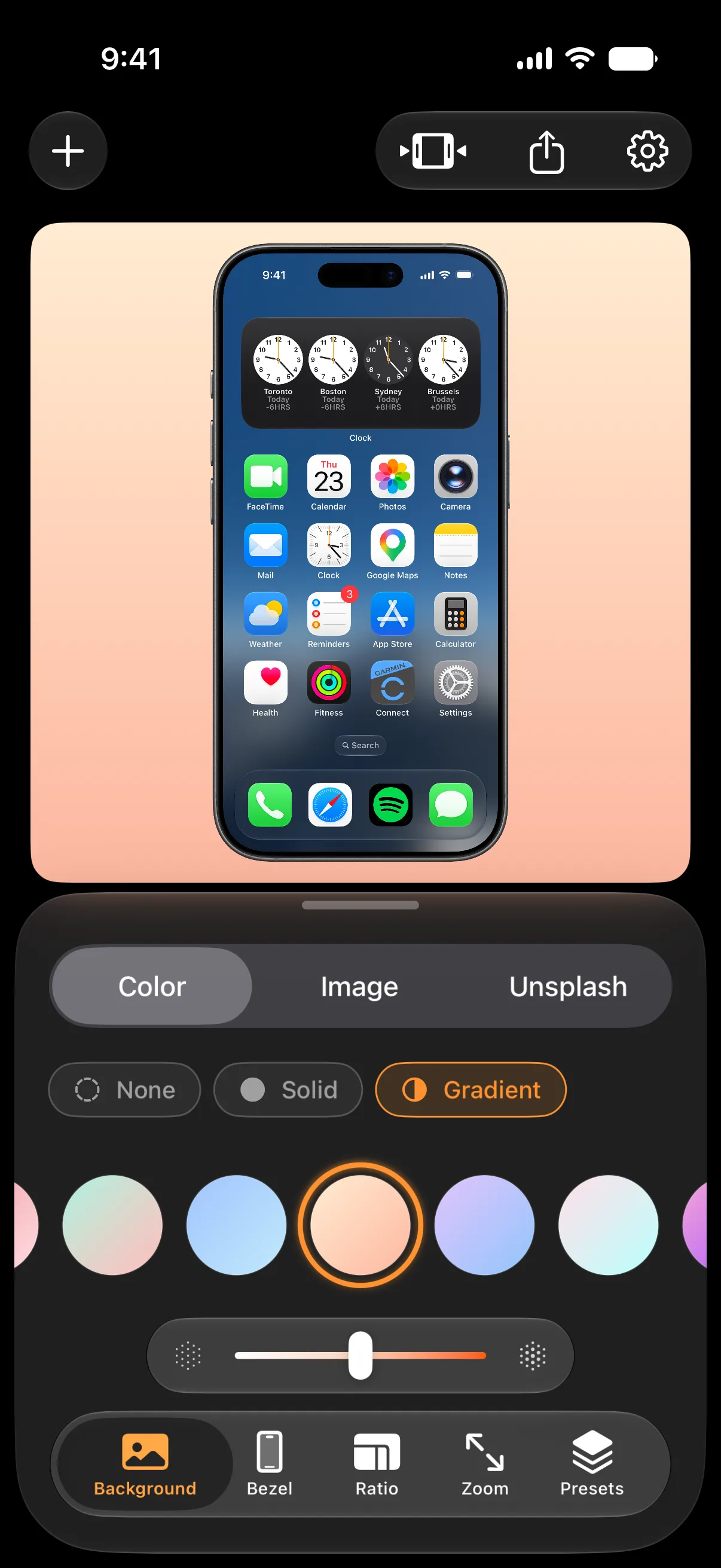
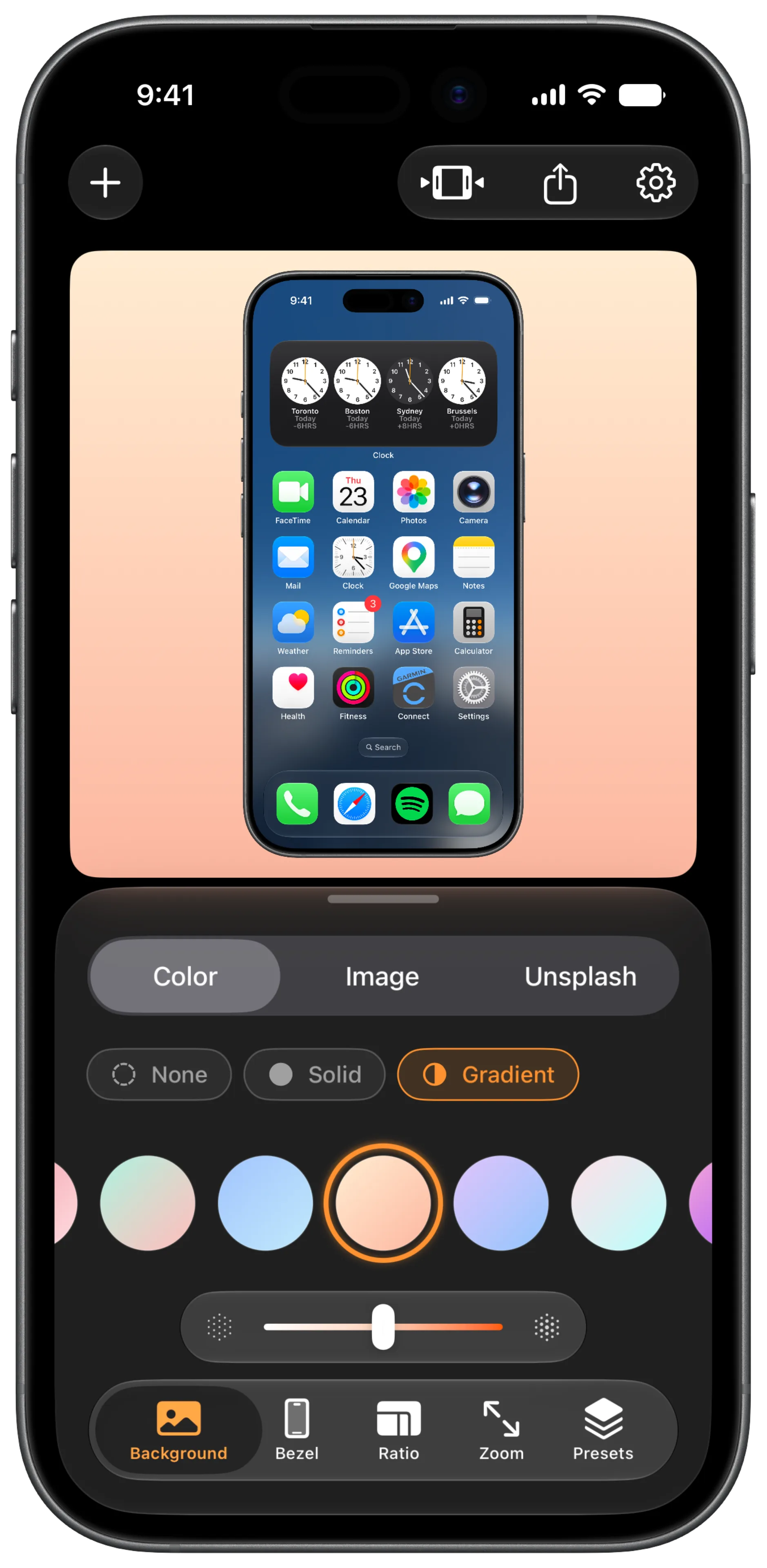
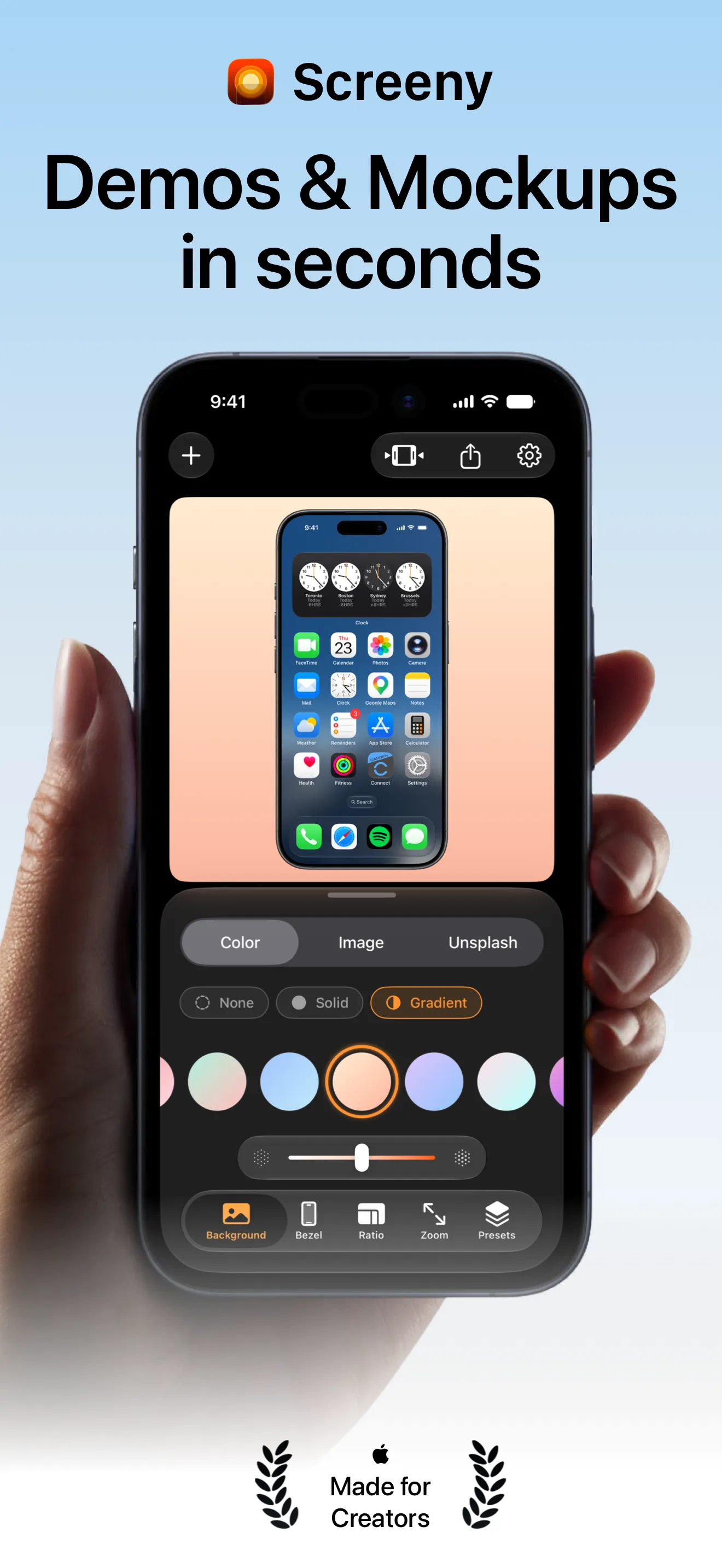
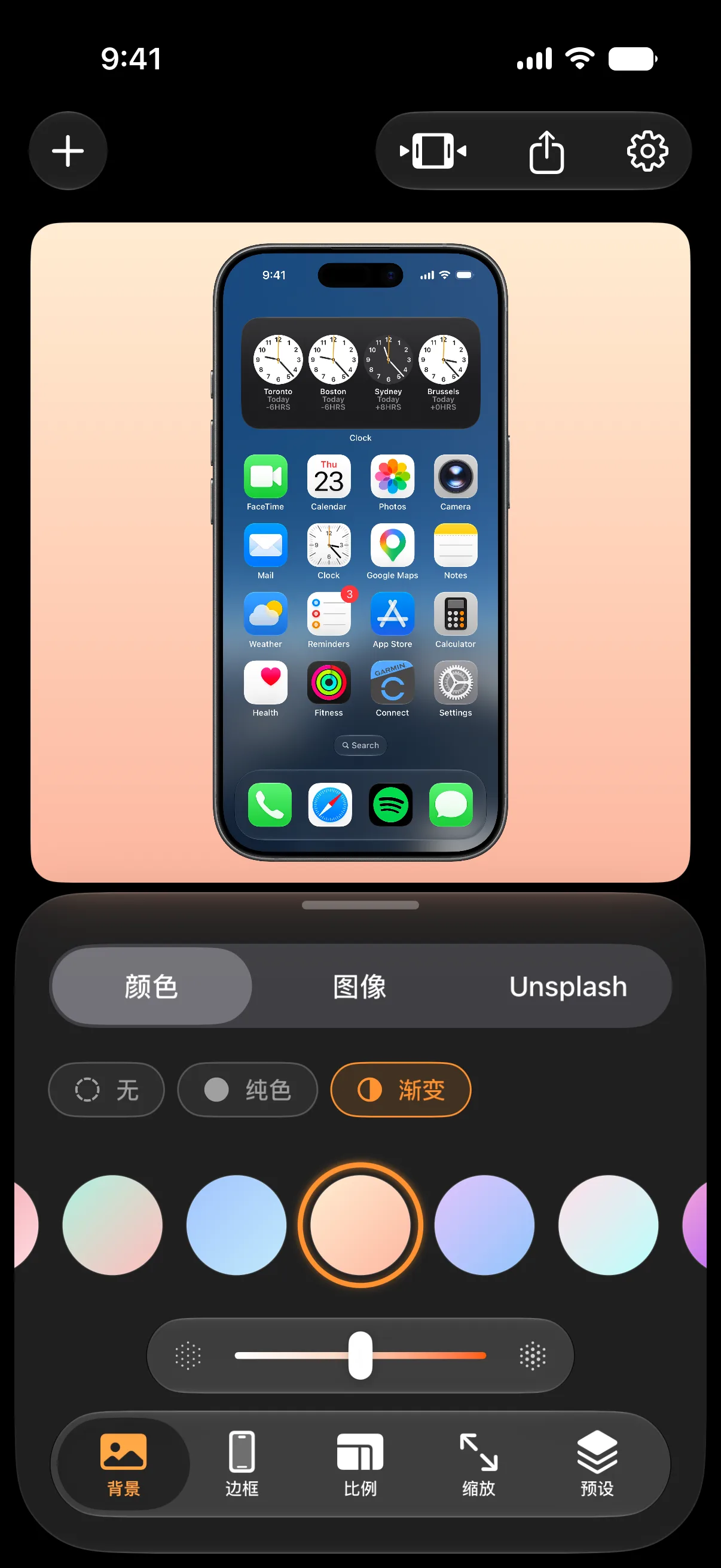
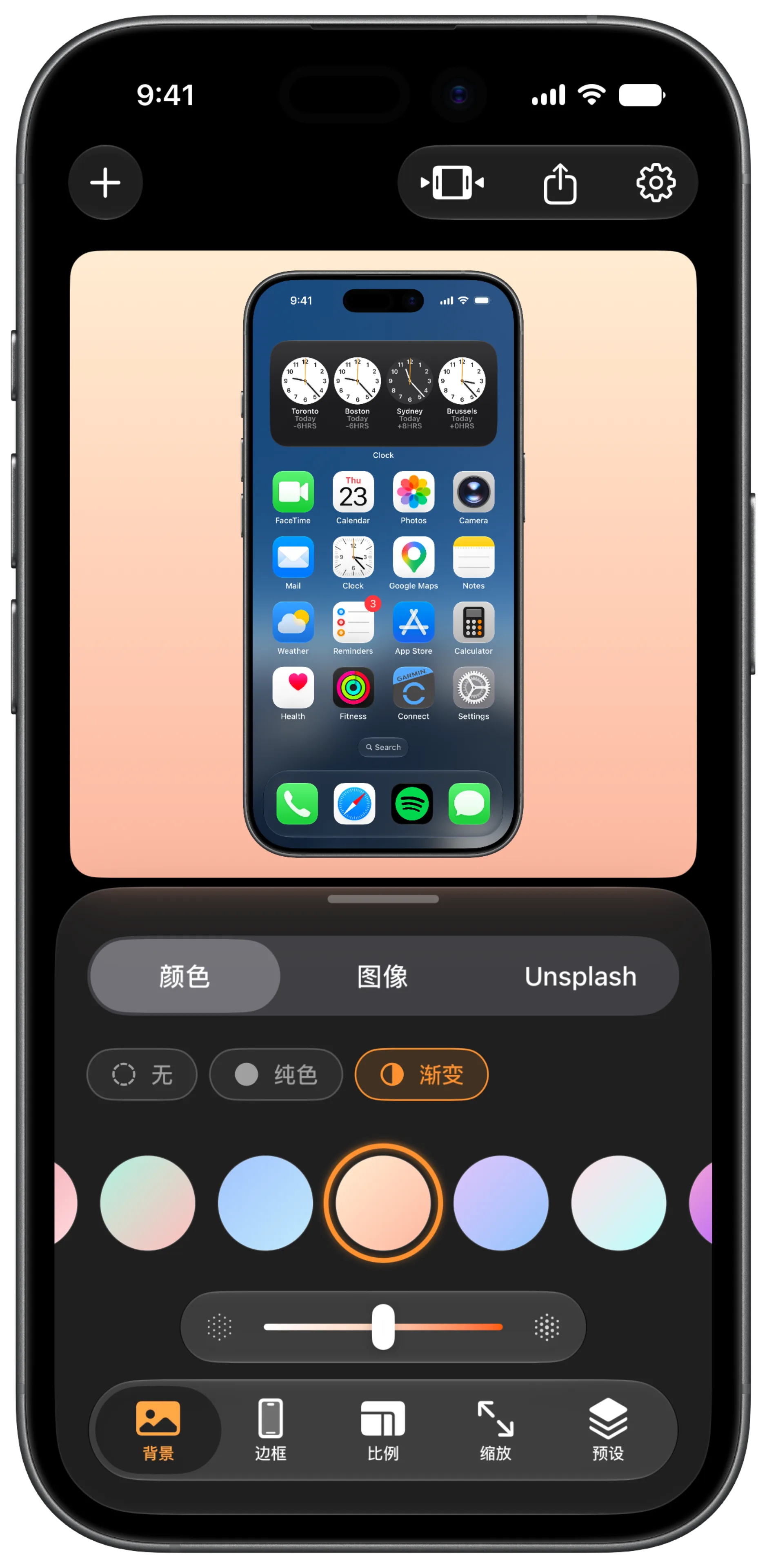
Both raw captures show 9:41 with full bars. That is the simulator override, and it looks the same in every language because the system draws the status bar, not the app.
This first artboard is the one exception to the single-image rule. The mockup sits behind a stock photo of a hand holding a phone with the screen cut out, so the artboard has two images. The photo is the same on all 15 pages, and the swap targets the mockup behind it specifically.
The other nine screenshots go through the same three steps, in every language.
Frequently asked questions
How do I set the iOS simulator’s status bar to 9:41?
Run xcrun simctl status_bar booted override --time "9:41" --batteryLevel 100 --cellularBars 4 --wifiBars 3. If the clock reads 09:41, set
AppleICUForce24HourTime to false with defaults write inside the simulator
and reboot it.
Does the 9:41 override work on a real iPhone?
No. simctl only controls simulators. For a screenshot from a real device, use
a tool that rebuilds the status bar on the image, such as Screeny’s
Clean Status Bar.
Does any of this leave my machine?
No. Screeny’s MCP server only listens on 127.0.0.1 and Sketch’s MCP server
runs locally too. The only upload is the finished PNGs going to App Store Connect.
Do I have to redo all 15 languages every time one screenshot changes? All 15 languages, yes, but only for the screen that changed. That is the 45-file case, not the 450-file one.
What if a screen in my app has no localized text? Several languages will produce identical captures. Hash them to confirm, render once, and copy the result. Identical screenshots are correct in that case.
Do I need Sketch for this? No. Sketch does the compositing, and any design tool with a scripting API that can replace a layer’s image and export an artboard can do the same. Capture and framing don’t depend on it.