Prompt Reference
Prompts for Screeny’s MCP server that you can copy, with what came back.
Every picture and video on this page was made the same way: the prompt above it was typed, once, into an AI agent whose only tools were Screeny’s. Nothing was touched up afterwards. The source for most of them is one ordinary home screen screenshot, taken at 22:48 with 14% battery. Only the file paths have been shortened here.
Swap in your own paths, devices and colors. For what each setting means, see the MCP Tools Reference.
The words that matter
You don’t need parameter names. The agent turns plain descriptions into settings, and these are the ones that carry the most:
| Say | What the agent sets |
|---|---|
| ”in 3D”, “turned 30 degrees to the left”, “slightly from above” | A 3D model, with the camera’s angle round the device and above it |
| ”long lens, like a product shot” | A narrow field of view, which flattens perspective |
| ”the same size in the frame” | How much of the frame’s height the device fills |
| ”Bars lighting with extra contrast”, “Showroom lighting” | One of the five studio setups, and its contrast |
| ”hard cut to…”, “each shot its own movement” | Separate camera movements placed back to back, so the picture cuts |
| ”extreme close-up on the camera lenses”, “pull back” | A camera move that raises the fill and shifts the device |
| ”starts as a silhouette”, “the lights rake across it” | The studio lights turning between two poses |
| ”whips through a full turn”, “snaps round” | More than one turn of the camera’s angle, on a snappy ease |
| ”looking steeply up with a very wide lens”, “the lens tightens” | The camera below the phone, and the field of view changing as it moves (a dolly zoom) |
| “lands with a springy bounce” | A spring ease between two poses |
| ”Stand Up, then Sweep, then Zoom” | Screeny’s own camera movements, back to back |
| ”ends on the pose it starts with” | A loop |
| ”square”, “9:16”, “16:9 landscape”, “black background”, “transparent background” | The canvas |
| ”show yourself a preview first”, “check it on a contact sheet” | A free look before anything is exported |
That last row is the one to keep. An agent can’t open your files, but it can look at Screeny’s preview, and it fixes its own framing when it does.
Stills
A 3D product shot
“Make a 3D mockup of
~/Shots/home.pngon a Burgundy iPhone 18 Pro, seen a little from the left and slightly from above, like an Apple product shot: long lens, Showroom lighting, on a very dark burgundy background rather than pure black so the edge of the phone still reads. Square. Look at a preview first, and fix it if the phone is cut off or its body disappears into the background. Save it in~/Shots/out.”
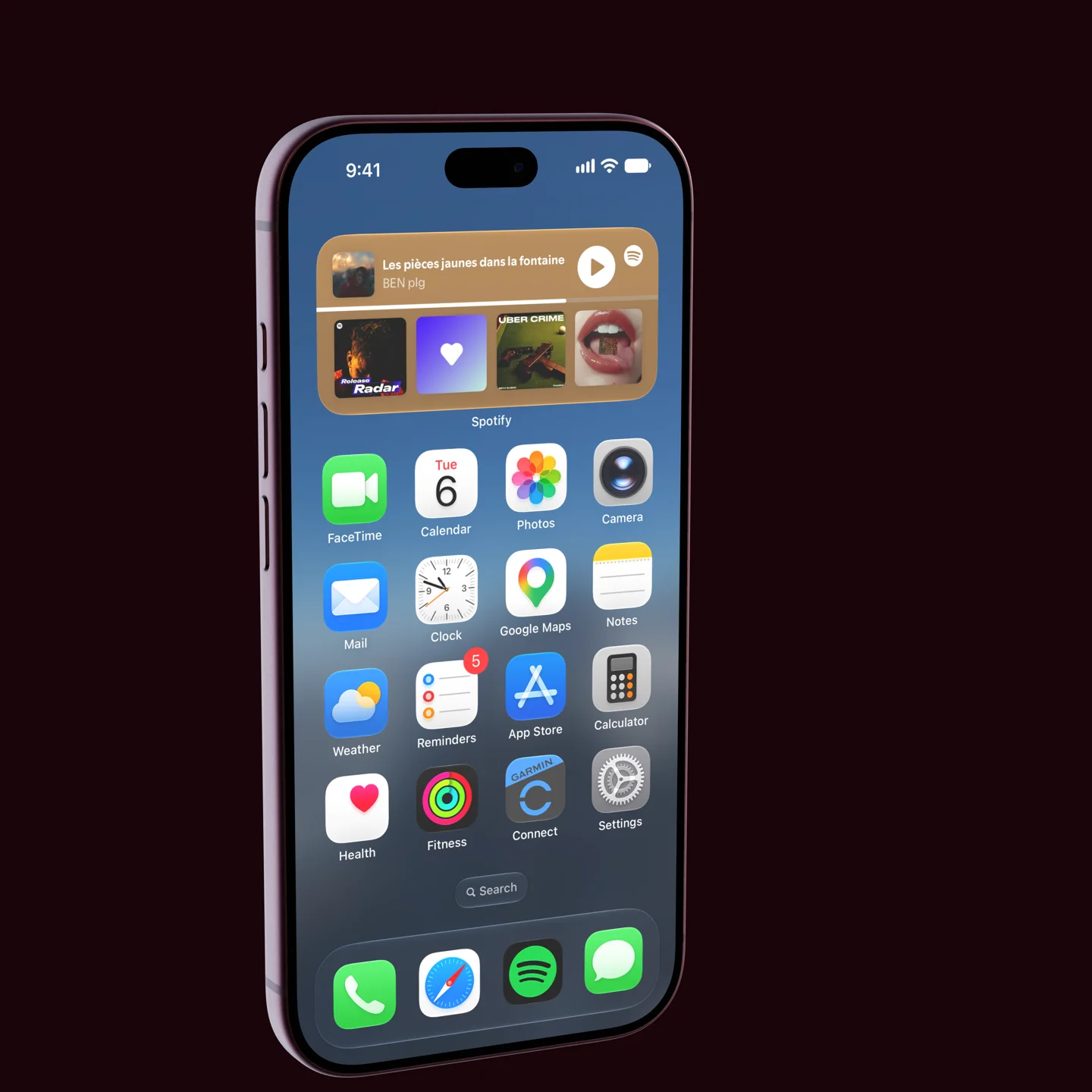
A dark phone on pure black loses its outline in a still. Say what the background should be, and why, and the agent will check for it.
A matching set of angles
“From
~/Shots/home.pngmake a matching set of three stills of a Silver iPhone 18 Pro in 3D: straight on, turned 30 degrees to the left, and turned 30 degrees to the right. Same size in the frame in all three, long lens like a product shot, Arch lighting, transparent background, square. Save them in~/Shots/out.”
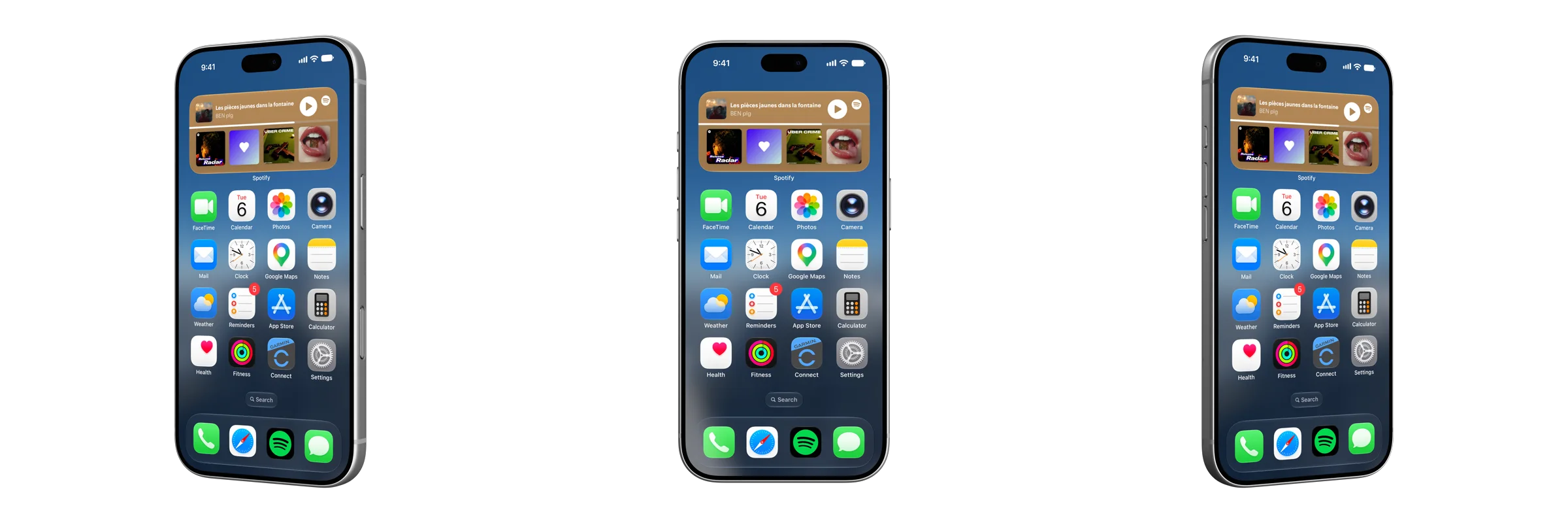
A flat mockup on a built-in background
“Frame
~/Shots/home.pngflat in a Burgundy iPhone 18 Pro on one of Screeny’s built-in backgrounds, whichever is darkest and suits a burgundy phone, blurred a little. 4:5 for Instagram, the phone slightly smaller than usual. Show yourself a preview first. Save it in~/Shots/out.”
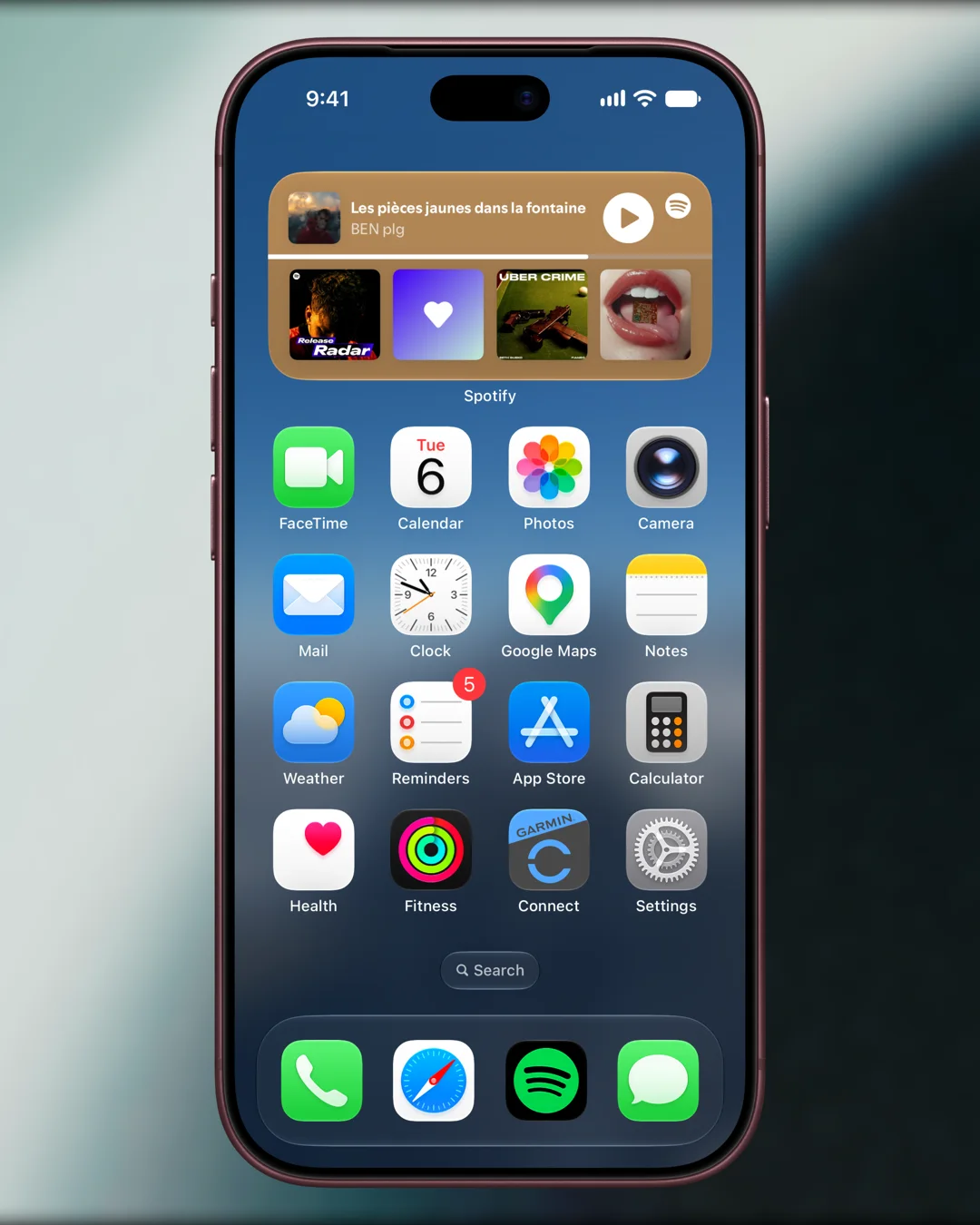
A whole folder, one look
“Frame every screenshot in
~/Screenshots/release-2.0with my ‘App Store’ preset and save them to~/Screenshots/framed.”
Still the most reliable prompt there is. See Prompting Screeny for why a preset beats a description.
Directed like a commercial
A still screenshot becomes a video the moment the camera moves. The best results come from writing the prompt the way a director writes a treatment: numbered shots, each with a length and a subject, cut together.
Three things make it work:
- Ask for hard cuts, and say how. Screeny cuts instantly when one camera movement ends and the next begins in a different pose. Agents don’t know that unless you tell them, so every prompt below spells it out once.
- Give each shot something to do while it is on screen: a slow push, a drift, the studio lights raking across.
- Make it look at its own work. “Look at contact sheets as many times as it takes” is what turns a close-up of nothing into a close-up of the lenses.
Cut to the beat
“Direct a 10-second Apple-commercial-style product film of
~/Shots/home.pngon a Burgundy iPhone 18 Pro, 16:9 landscape on black, long lens, Bars lighting with extra contrast and a little extra exposure. It is a montage of HARD CUTS, not one gliding camera: make each shot its own movement that starts the instant the previous one ends, with a different pose, so the picture cuts. Six shots, each slowly drifting or pushing while it is on screen: (1) 1.5 s, extreme close-up of the three camera lenses, light raking across them; (2) 1.3 s, the phone exactly edge-on, extreme close-up travelling up the side rail past the buttons; (3) 1.3 s, extreme close-up of the Dynamic Island and the clock at the top of the screen, seen at a steep grazing angle; (4) 1.3 s, extreme close-up of the dock icons at the bottom of the screen from the opposite grazing angle, sliding sideways; (5) 1.6 s, the whole back as a dark silhouette until the lights sweep round and the logo lights up; (6) 3 s, wide: the phone whips through one full fast turn and lands straight on with a springy settle, then holds. Look at contact sheets as many times as it takes: every close-up must really show the detail it names, and nothing may be too dark to read. Then export. Save it in~/Shots/out.”
The agent looked at five contact sheets before it exported. To get the side rail to run across a wide frame it rolled the phone onto its side, which nobody asked for and is exactly right. This is one of the five sheets, sampled just before and just after every cut:
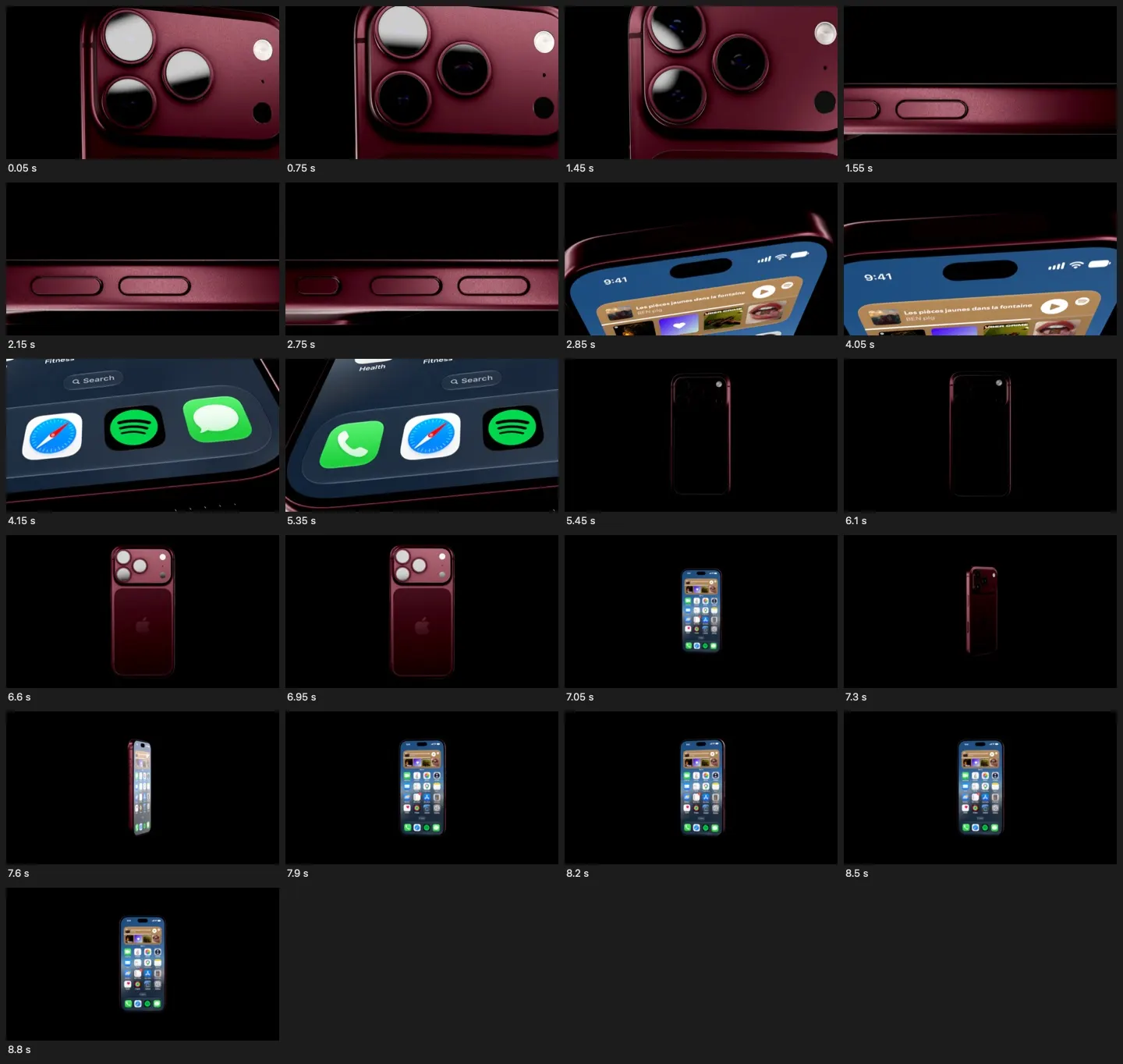
And this is all a cut is. The first shot ends at 1.5 s; the second starts at 1.5 s somewhere else:
"movements": [
  { "poses": [
    { "time": 0,   "yaw": 166, "pitch": 4, "fill": 255, "offset_x": 0.3, "offset_y": -1, "light": -50 },
    { "time": 1.5, "yaw": 173, "pitch": 4, "fill": 270, "offset_x": 0.3, "offset_y": -1, "light": 55 }
  ]},
  { "poses": [
    { "time": 1.5, "yaw": -90, "roll": -90, "fill": 400, "offset_x": 0.15, "light": -10 },
    { "time": 2.8, "yaw": -90, "roll": -90, "fill": 400, "offset_x": 1,    "light": 20 }
  ]}
]
Out of the dark
“Direct an 8-second Apple-commercial-style reveal of
~/Shots/home.pngon a Burgundy iPhone 18 Pro, 16:9 landscape on black, long lens, Bars lighting with extra contrast. Beat 1 (3 s): the back of the phone, large in the frame and slightly turned, starts as a black silhouette with only a thin rim of light; the lights rake slowly across it until the burgundy glows and the logo lights up, while the camera creeps in. Beat 2 (0.7 s): a whip, the phone snaps round to its screen with a snappy ease. Beat 3 (2.5 s): hard cut to an extreme close-up gliding across the widget at the top of the screen at a slight angle. Beat 4 (1.8 s): hard cut wide, the whole phone straight on, drifting in very slowly. For a hard cut, make the next shot its own movement that starts the instant the last one ends with a different pose. Check contact sheets until the silhouette really starts dark and ends lit and the close-up is on the widget, then export. Save it in~/Shots/out.”
Only the lights are animated here. Under the Bars setup, turning them takes the back of the phone from a rim-lit outline to fully lit.
Flyover
“Direct an 8-second Apple-commercial-style flyover of
~/Shots/home.pngon a Glacier iPhone 18 Pro, 16:9 landscape on black, Showroom lighting. The camera skims just above the glass like a drone flying low over a landscape: it starts at the dock, almost edge-on to the screen with a wide lens so the icons stretch away in deep perspective, and flies up the screen past the rows of icons to the widget and the Dynamic Island. Then it lifts and swings round to face the phone, the lens tightening to a long one, and pulls back to end on the whole phone straight on. Slow in, slow out. Check it on contact sheets, keep the screen readable and in frame during the flight, fix what isn’t, then export. Save it in~/Shots/out.”
Monolith
“Direct a 9-second Apple-commercial-style hero shot of
~/Shots/home.pngon a Silver iPhone 18 Pro, 16:9 landscape on black, Bars lighting with extra contrast. One continuous, slow, majestic move. It opens looking steeply up at the phone from below with a very wide lens, so it towers over us like a monolith, filling the frame top to bottom and slightly turned, in near darkness; the studio lights sweep across and reveal it. Then the camera rises to eye level while the lens tightens from very wide to very long, so the phone’s perspective flattens as we watch (a dolly zoom) and it turns to face us. It ends straight on, long lens, the whole phone in frame, and holds for a second. Gentle eases throughout. Check it on a contact sheet, fix anything cropped by accident or unreadably dark, then export. Save it in~/Shots/out.”
Whip and hold
“Direct a 9-second Apple-commercial-style film of
~/Shots/home.pngon a Black iPhone 18 Pro, 16:9 landscape on a very dark navy background, long lens, Showroom lighting. It is all about rhythm: slow, fast, hold, fast, slow. (1) 2.5 s: the phone hangs large and rolled about 20 degrees off upright, cropped by the frame, drifting very slowly. (2) 0.8 s: it whips through a turn and a half with a snappy ease and stops on a three-quarter view of its back. (3) 2 s: hold there, almost still, while the lights sweep across the camera lenses. (4) 0.7 s: whip back round to the screen, rolling upright as it turns. (5) 3 s: settle straight on with a soft spring and drift in slowly. Check it on contact sheets, make sure the holds are well framed, then export. Save it in~/Shots/out.”
The iPhone Duo, unfolding
“Direct a 10-second Apple-commercial-style film of the iPhone Duo, with
~/Shots/lock-screen.pngon its cover and~/Shots/app-demo.mp4playing inside. Night Sky, 16:9 landscape on black, long lens, Bars lighting with extra contrast and extra exposure so the dark phone reads. Describe every pose yourself, no ready-made animation, and use HARD CUTS between shots: make each shot its own movement that starts the instant the previous one ends with a different pose. (1) 2 s: the shut phone, large, slightly turned, its cover screen glowing, lights raking across it as it turns slowly. (2) 1.5 s: cut to an extreme close-up of the hinge side, edge-on, travelling along it. (3) 3 s: cut wide and a little above: the phone opens like a book as it turns to face us, ending flat open. (4) 3.5 s: cut to the open screen filling the frame, straight on, pushing in very slowly while the recording plays. Check contact sheets until every shot is framed and bright enough, then export. Save it in~/Shots/out.”
Simpler shots you describe
Not every clip needs a treatment. One sentence about where the camera starts and ends is enough for these.
A macro pass
“Make an Apple-style close-up video of
~/Shots/home.pngon a Glacier iPhone 18 Pro: start very tight on the top of the screen at an angle, drift down across the widget and the icons, then pull back to reveal the whole phone straight on. About 7 seconds, long lens, Bars lighting, black background, 16:9 landscape. Check it on a contact sheet first. Save it in~/Shots/out.”
A drop-in with a bounce
“Make a short, playful 3D clip of
~/Shots/home.pngon a Glacier iPhone 18 Pro: the phone drops in from above the frame and lands with a springy bounce, then gives a small tilt left and right like a nod. About 4 seconds, deep navy background, 9:16. Check it on a contact sheet before exporting. Save it in~/Shots/out.”
A seamless loop on transparency
“I need a seamless loop for a website hero:
~/Shots/home.pngon a Silver iPhone 18 Pro, floating and drifting very gently, a few degrees each way, never still, ending exactly on the pose it starts with so it loops. 8 seconds, transparent background. Save it in~/Shots/out.”
Two things a description can’t do
Light sweeps read on the body, not on the screen. Asked for lights sweeping across a phone that faces the camera, Screeny renders it and you see almost nothing, because a lit display hides the reflection. Ask for the back or a three-quarter view when the light is the point.
And described poses move the camera around a phone that stays upright. Asked for a phone “lying flat on a table that lifts up and stands”, the agent explained exactly that and exported a shallow tilt instead. Lying down and standing up are what the built-in movements below are for.
Screeny’s own camera movements
When you’d rather not direct the shot yourself, name one of the thirteen camera movements that ship with the app. Each plays at the pace it was designed at. Name several, in order, and they play back to back.
| Movement | What it does |
|---|---|
| Stand Up | Lifts the phone from lying down, turning it as it stands |
| Rise | Lifts it from lying flat, seen from the foot, to standing |
| Flat Drift | Glides low across the screen of a phone lying down |
| Sweep | Passes close by the phone at an angle |
| Zoom | Pushes in on the top of the screen and comes back |
| Swing In | Swings in close across the screen and back out |
| Turn In | Starts on the camera lenses and turns round to the screen |
| Flip Side | Goes round to the camera lenses on the back and lays the phone down |
| Profile | Starts edge-on and opens to a close three-quarter view |
| High Orbit | A slow orbit, seen from slightly above |
| Tumble | A close-up that rolls the phone through a quarter turn |
| Showcase | A full presentation: edge-on, round both sides, settle |
| Settle | Arrives small and tilted, straightens and holds |
Stand Up, Sweep, Zoom
“Make a 3D video of
~/Shots/home.pngon an iPhone Air in Sky Blue using Screeny’s own camera movements back to back: Stand Up, then Sweep, then Zoom. Showroom lighting, dark navy background, square. Save it in~/Shots/out.”
Flat Drift, Rise
“Make a 3D video of
~/Shots/home.pngon a Glacier iPhone 18 Pro using Screeny’s own camera movements back to back: Flat Drift, then Rise. Showroom lighting, dark navy background, square. Save it in~/Shots/out.”
More chains that came out well and need no picture to explain: “Profile, then Tumble, then Settle”; “Turn In, then Sweep, then Zoom”, which opens on the camera lenses; “Swing In, then Flip Side, so it ends on the back of the phone”; and “with Screeny’s Showcase camera movement” on its own, which is a whole presentation in six seconds.
iPhone Duo
The folding phone is one device with two displays. Give it two pictures and Screeny puts each on the display it is the shape of. If one of them is a recording, that is the one that plays. The film above poses its hinge by hand. It also has seven animations of its own: Opening, Closing, Landscape, Portrait, Seated (like a small laptop), Standing (like a tent) and Durability (the hinge, from behind).
“Make a 3D video of the iPhone Duo with
~/Shots/lock-screen.pngon the cover and~/Shots/app-demo.mp4playing inside, using Screeny’s own animations: Opening as an intro before the recording starts, then about 6 seconds of the recording, and Closing to finish. Night Sky, Bars lighting with extra contrast, black background, square. Check it on a contact sheet before exporting. Save it in~/Shots/out.”
“As an intro” is what holds the recording on its first frame until the phone is open. The agent first placed Closing after the recording had ended. Screeny refused, said how long the video was, and the agent moved it.
Flat video: push-ins
A flat mockup animates with zoom push-ins instead of a camera.
“Make a flat (not 3D) video mockup of
~/Shots/home.pngon a Black iPhone 18 Pro that pushes in slowly on the Spotify widget at the top of the screen, holds a moment, comes back out, then pushes in on the dock at the very bottom. Put it on Screeny’s darkest built-in background, 9:16. Look at a preview of each push-in before exporting and move it if it misses.”
The agent has never seen your screenshot, so it aims from your words. Say where something is, not only what it is, and ask it to preview each push-in. With a recording, give the time too: “a 2× push-in on the search bar at 0:02”.
Recordings
A screen recording plays on the device for as long as it lasts. The prompts in this section and the two after it have no picture: they are adapted from the test suite Screeny’s tools are developed against, where each request is handed to a real agent and checked by what it produced.
“Make a 3D video mockup of
demo.movon an iPhone 18 Pro. Play the Stand Up movement as an intro, before the recording starts playing.”
“Make a video of
demo.movon an iPhone 18 Pro. Only keep the part from second 1 to second 4.”
“Make a 3D video of
home.pngon an iPhone 18 Pro with the Sweep movement and a transparent background, so I can composite it.”
Movement times count from the start of the video. One placed after the recording ends is refused, and the refusal says how long the recording really is, so the agent corrects itself.
Projects
A project keeps its screenshots, its look and its animation, and you can open it in the app and carry on by hand. None of these render anything or cost a credit.
“Create a new Screeny project called ‘Launch’ in a folder called ‘Spring release’. Use
~/Shots/home.pngon an iPhone 18 Pro in Burgundy with a black background.”
“Create an empty Screeny project called ‘House Style’: iPhone 18 Pro in Silver, rendered in 3D with the Showroom lighting. I’ll add screenshots later.”
“Make a new project called ‘October’ that looks exactly like my ‘House Style’ project, with
~/Shots/latest.pngin it. Leave ‘House Style’ as it is.”
“Add
~/Shots/settings.pngto the end of my ‘Launch’ project.”
“Which device and what kind of background does my ‘Launch’ project use, and how many screenshots are in it?”
“Duplicate my Screeny project ‘Launch’ and call the copy ‘Launch B’.”
“Move the project ‘Launch B’ into a new folder called ‘Archive’.”
“Save a copy of my ‘Launch’ project as a project file on my Desktop, so I can send it to a colleague.”
A project used this way is a template that also carries its animation, which a preset doesn’t.
Drive the app on screen
The agent can also work in the editor you are looking at. It changes one thing at a time and you watch it happen, which is the quickest way to art-direct: say what’s wrong, look, say the next thing.
“Start a quick mockup in Screeny with
~/Shots/home.pngon an iPhone 18 Pro in Glacier, so I can look at it in the editor. Don’t export anything.”
“Switch what I have open to 3D, turn the camera about 25 degrees to the side, and use the Bars lighting.”
“What do I have open in Screeny right now? Tell me the device, whether it’s flat or 3D, and which lighting it uses.”
“Save what I have open as a project called ‘Kept’.”
“Export what I have open, as it is, to my Desktop.”
“Open my ‘Launch’ project in Screeny.”
And when you’ve styled something by hand and want more of it:
“Create a Screeny project called ‘More Like This’ with
~/Shots/next.png, looking exactly like what I have open in the editor right now.”
One more that renders nothing:
“How many Screeny credits do I have left, and am I on the unlimited plan?”
Getting good results
- Write a treatment, not a wish. Numbered shots, a length and a subject for each, and where the cuts are. “Make it look like an Apple ad” gets one slow turn; six named shots get a film.
- Describe the shot, not the settings. Start, middle, end, and how long.
- Ask for a look first. “Show yourself a preview” for a still, “check it on a contact sheet” for a video. Previews are free, and every fix mentioned above is the agent catching its own mistake this way.
- Or name a built-in movement. Two or three in a row is a finished clip with no directing at all.
- Set the studio. A dark background, a long lens and Bars or Showroom lighting is most of what makes a render look like a product film. Left out, you get a portrait canvas on a soft solid color under the default lights.
- Say where things are on the screen. The agent can’t see your screenshot. “The widget at the top” is enough.
- Expect an honest report. A good agent tells you what it checked and what it didn’t. If it says it never previewed the result, ask it to.
- Iterate in words. “Slower”, “start further round”, “less bounce”. Each pass is one more render.
Videos cost 3 credits each and stills 1, unless you’re on Screeny Pro. Finding a shot you like usually takes a few renders, which is the real reason to have unlimited exports before you start.