Prompting Screeny
Screeny’s MCP server gives your agent a set of tools with a lot of knobs: devices, bezel colors, backgrounds, zoom, aspect ratios, status bars (full list here). You can describe all of that in a prompt, and it works. But the easiest way to get consistent results is to stop describing it: build a preset once, then tell your agent to use it.
Make a preset, then name it in the prompt
Style one mockup exactly how you want it in the Screeny editor, save it as a preset, and give it a name you’d actually say out loud: iPhone 17 App Store, Instagram Story, Blog header. Your agent can list your presets and apply one by name, so the whole visual setup collapses into two words:
“Frame every screenshot in
~/Screenshots/release-2.0with my ‘App Store’ preset and save them to~/Screenshots/framed.”
Every screenshot comes out identical, and next release you send the same sentence. Presets sync over iCloud, so the one you built on your iPhone is available to the agent talking to your Mac.
Get Screeny Pro before you automate
We recommend Screeny Pro (lifetime purchase, monthly, or yearly) for MCP work. An agent can render a whole folder of screenshots or a batch of videos in one go, which burns through credits fast. Pro gives you unlimited exports, so you never think about it mid-run.
Grant folders ahead of time
Screeny is sandboxed: it can only read from and write to folders you’ve explicitly approved. When your agent hits one that hasn’t been granted, macOS shows the native panel and the agent retries once you approve, which is fine for a one-off, but it interrupts a long run.
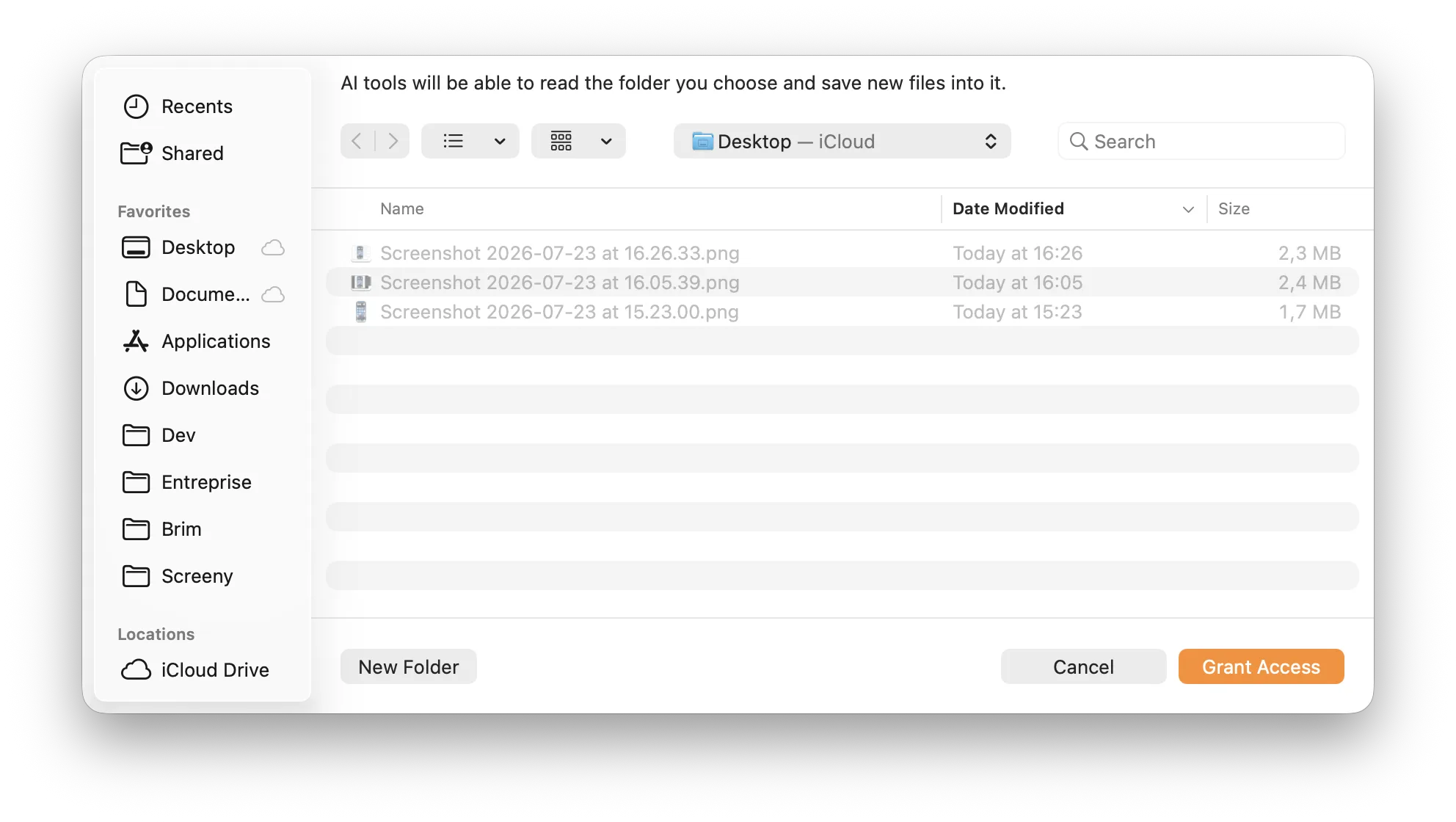
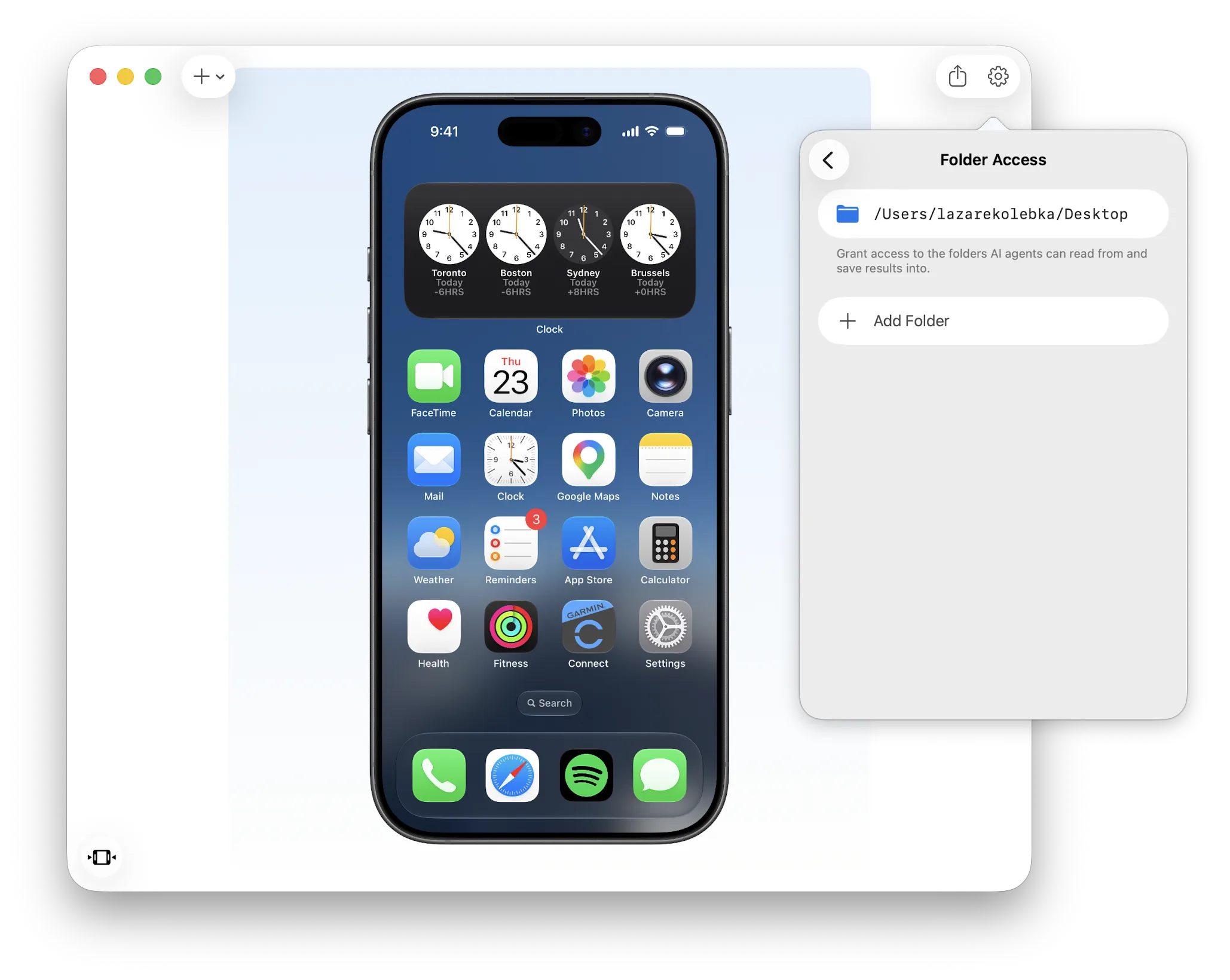
Before a big batch, add the folders up front in Settings → Automation → Folder Access: the source folder and the destination. Everything you’ve granted is listed there, and you can revoke any of it at any time.
Reuse what’s on screen
If you’ve just styled something in the editor and want more of it, you don’t need a preset at all. Your agent can read the configuration you have open right now:
“Make these five screenshots look like what I have open in Screeny.”
It’s the fastest way to extend a set you’re in the middle of. If you find yourself asking for it every week, that’s a preset waiting to be saved.
Keep the recipe in your project
Agents like Claude Code read a CLAUDE.md (or AGENTS.md, or .cursorrules) from your project, so the whole thing can live in the repo next to the code:
## Framing screenshots

Raw simulator captures land in `./screenshots/raw`.
Frame them with Screeny MCP using the **App Store** preset,
output to `./screenshots/framed`.
After that, release day is one sentence: “reframe the screenshots.”
For video, describe the motion
Presets cover the look, but they don’t store keyframe animations, so video prompts still carry the movement:
“Make a video mockup of
demo.movwith my ‘Demo’ preset, plus a 2× push-in on the search bar at 0:02.”
Video exports can’t run in the background, so leave Screeny in the foreground until they finish. More on animation in Video Mockups & Keyframe Zoom.